Welcome to Hyper - now on Desktop. Create your ultimate Vtuber avatar, make original characters, stream easily, and more!
Download link:

Build Your V Tuber in Seconds
Becoming a V Tuber has never been easier. Create your Hyper V Tuber in minutes or import any pre-existing character and start streaming immediately.
To create a Hyper Character
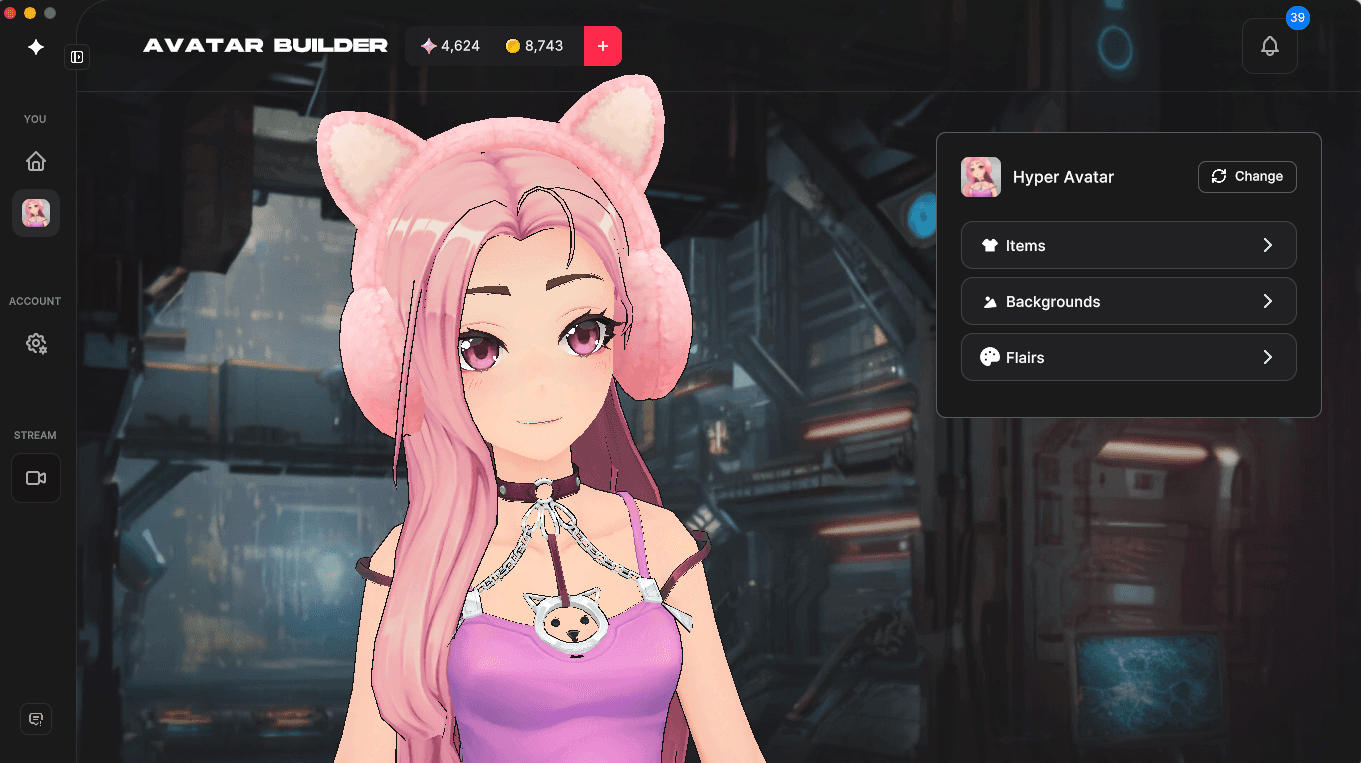
- Navigate to the Avatar Builder. Tap Change.
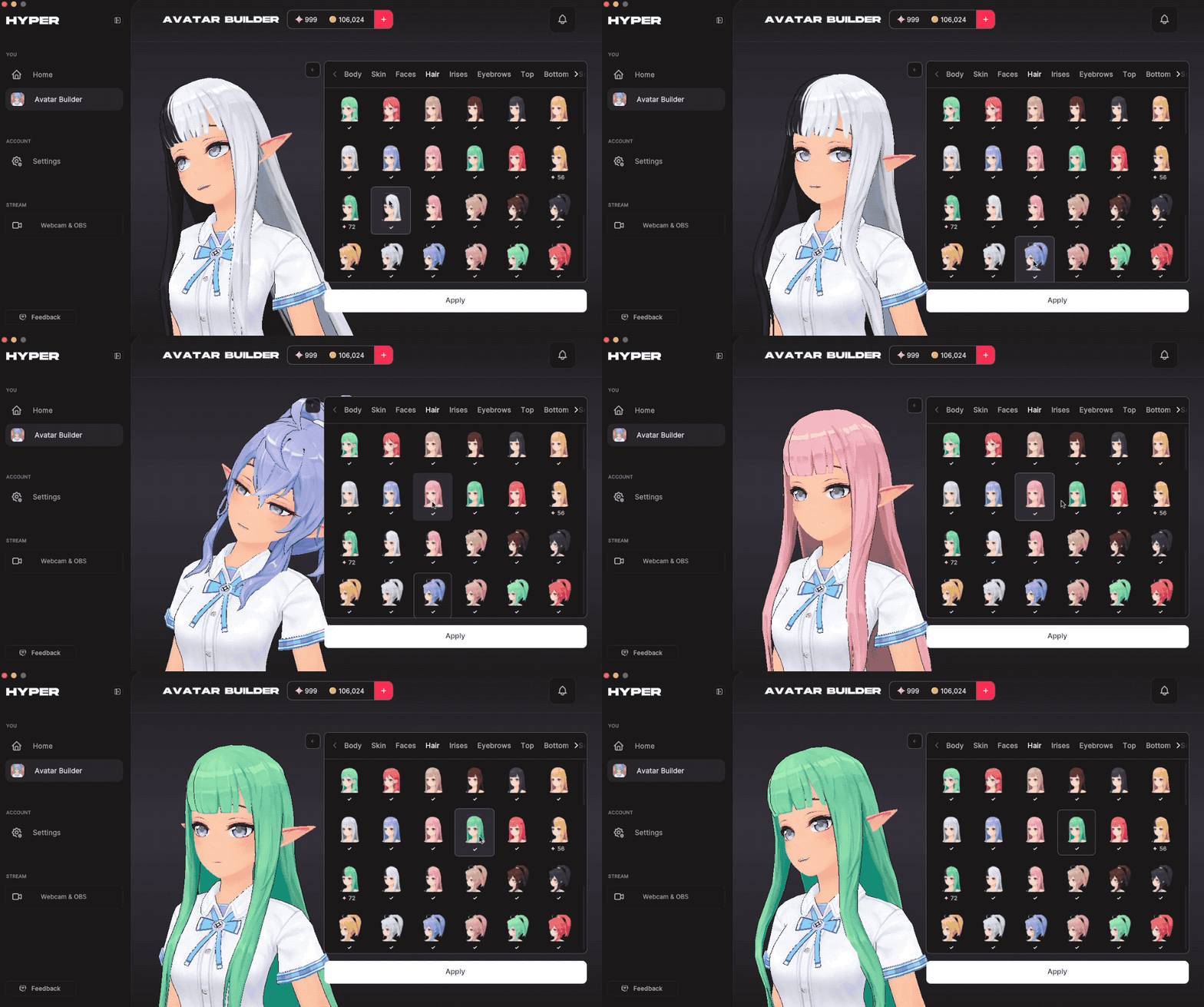
- Create a new character with the "+New" button. From there, customize your Hyper avatar. Click "Apply"
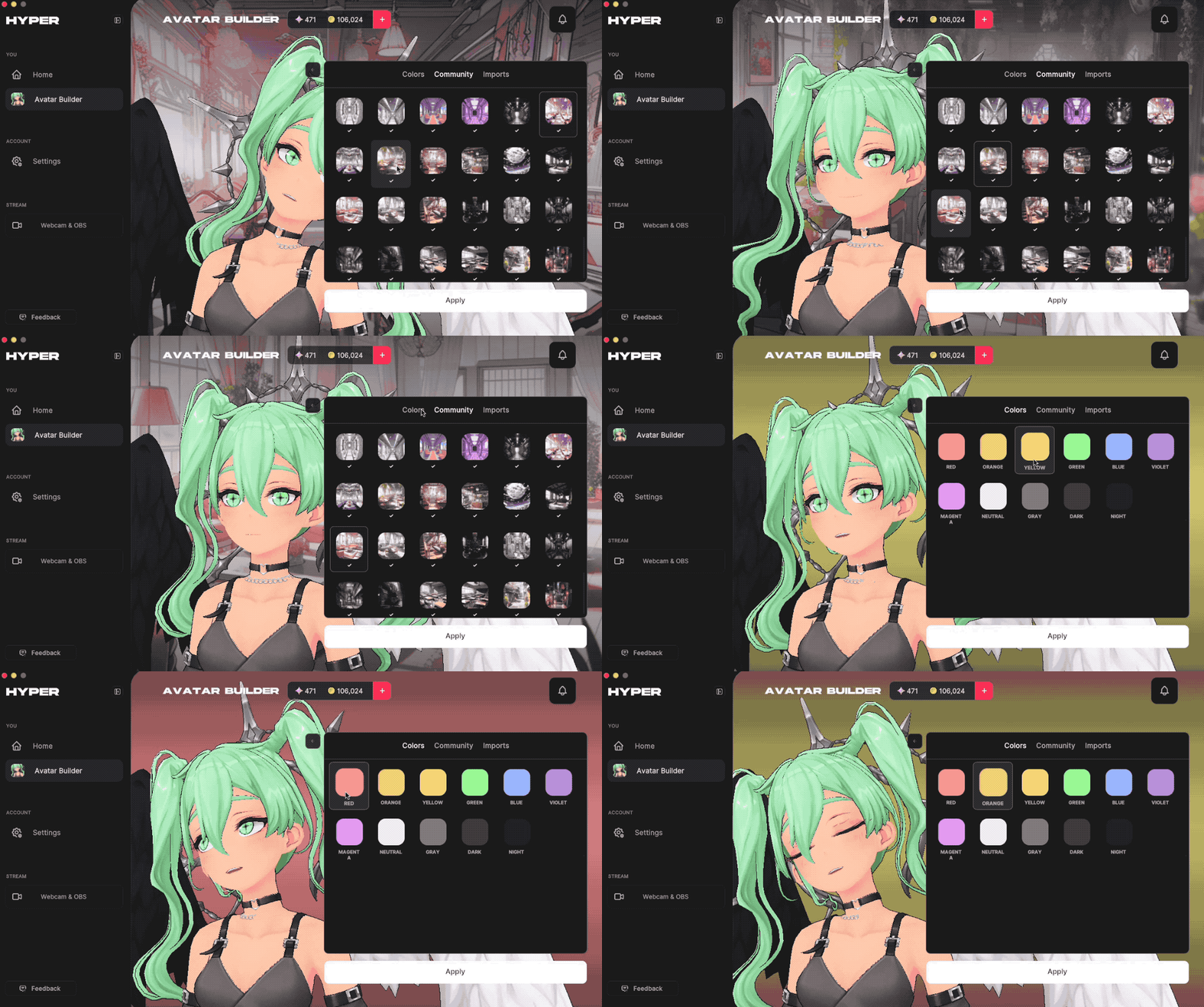
- Customize your Flair and Background color. Click "Save" and take a photo for your Avatar icon.
- To change your characters, click "Change", and choose your desired character. You can create multiple VTuber avatars for different seasons, skits, and more.

Import Your Own Character
(coming soon!)
This feature is coming soon. You can access your imported avatars through our Asset Manager on the mobile application or website.
If you already have a pre existing avatar, you can easily import them to use on Hyper Desktop. We are currently working on enabling Desktop uploads. For now, you will need to upload via https://hyper.online or on our mobile application.
- Prepare your VRM file or Live2d on your desktop. Make sure it is properly rigged and aligns with our best practices guide.
- Upload your VRM or Live2D file to `https://hyper.online' or on our mobile application.
- If you have a red exclamation mark on the file, it might mean that the file is improperly prepped. Double check your file again.
- Navigate to Avatar Builder on Hyper Desktop
- Select your uploaded avatar.
Change your background
- Tap Background in the Avatar Builder to change your background.
- Import your own backgrounds or choose from our pre existing ones.
Set Custom Emotes
Set custom emote and poses. You can dance, sing, and more.
- Tap the Pose button inside of the Avatar Builder.
- Go to your desired tab then tap New to set a new emote or pose.
- Assign your emote from the list and choose an icon by clicking Manage.
Record, Stream, or Use Your Vtuber in Discord or Meetings
There are endless ways to have fun as a V Tuber. Turn on your webcam, choose your Vtuber and use the Hyper Avatar Suite to .Here’s how you can Record, Stream, or use your Vtuber in your meetings or Discord server.
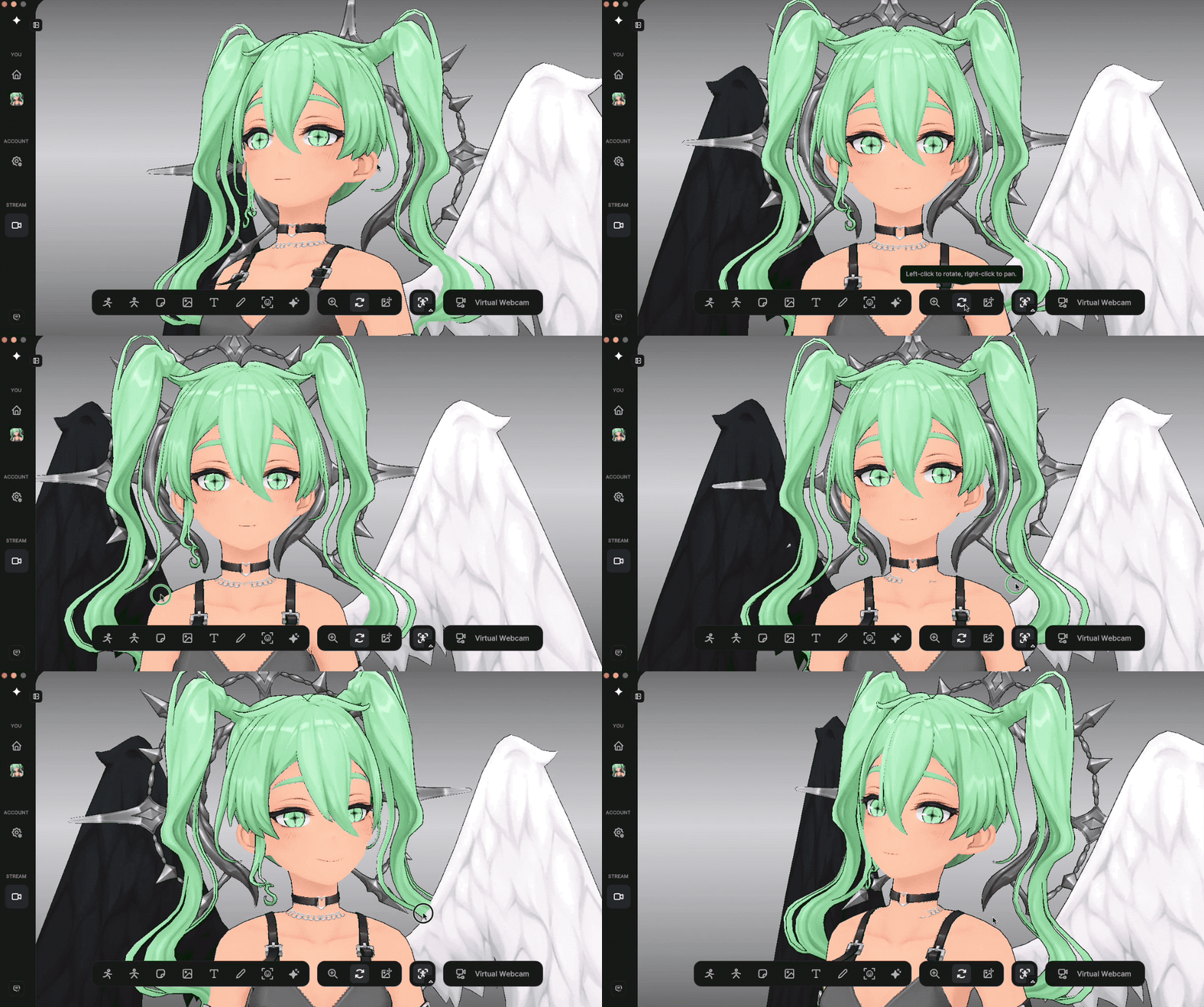
Using the Avatar Tool Bar in Webcam and OBS mode
Emotes + Poses You can set your poses and emotes in the Avatar Builder section.
Props - Customize your stream with props.
Insert - Insert a photo or video in your background
Text tool - Use the text tool in your streams
Drawing tool - Draw messages to your viewers or annotate
Frame camera - Use this to select portrait, half body, or full body mode.
Green Screen - Set your background to a chromakey color
Setting Your Camera , Additional Media, and Face Tracking
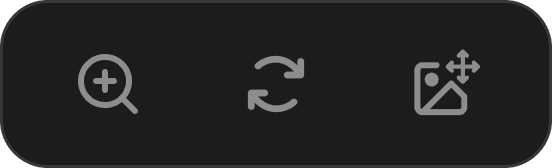
This panel will help adjust the camera position.
Zoom in / out
Orbit and pan
Add additional media such as photos or videos behind or in front of your V tuber.
This button is for selecting your camera source and turning on face tracking.
Turn on Face Tracking
Turn on Hand Tracking
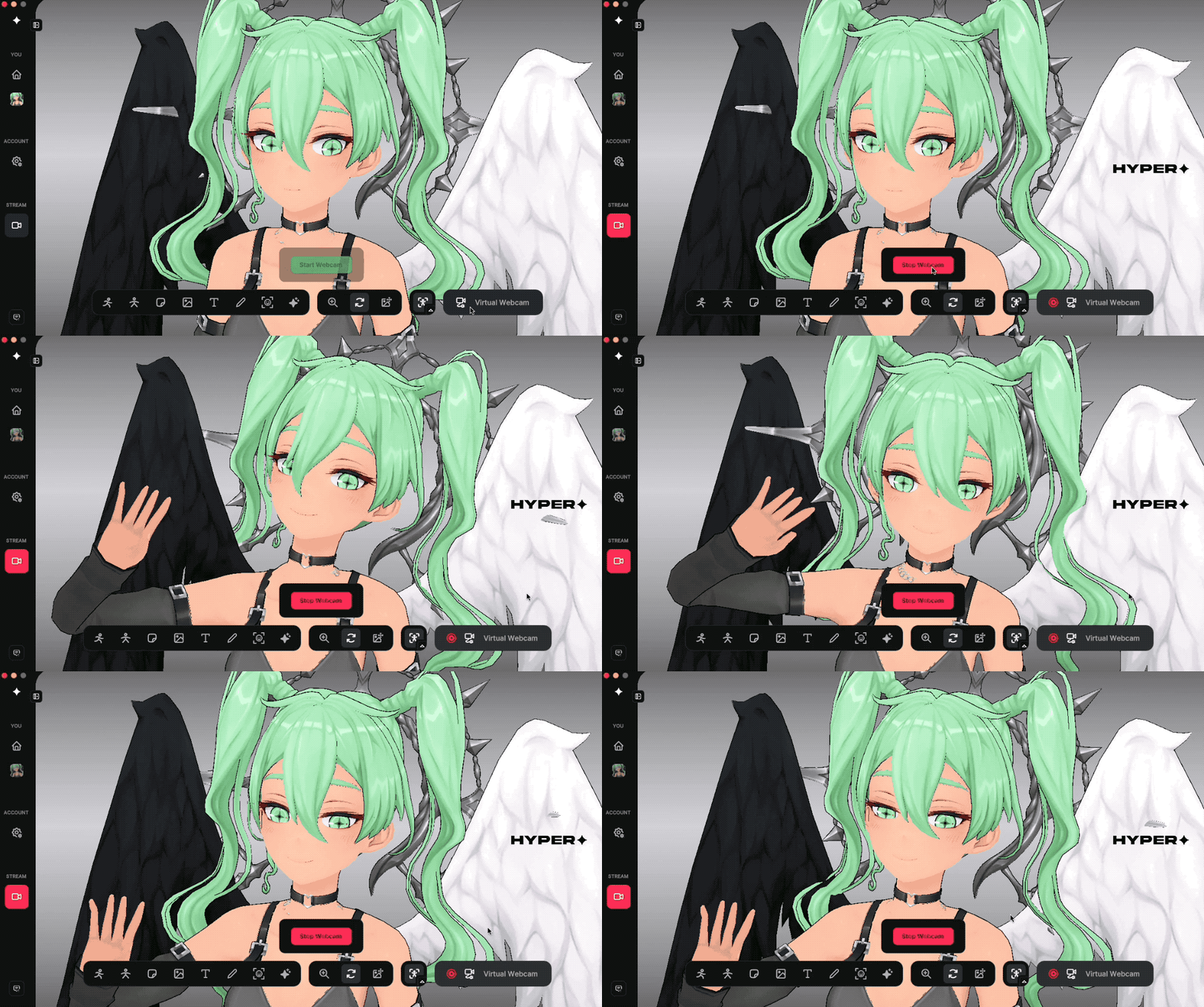
Starting Virtual Webcam
This will start the virtual webcam, enabling you to use it anywhere.
Use your V Tuber for Streams, Meetings, or Discord
- Navigate to Webcam & OBS under Stream on Hyper.
- Set up your Meeting. The bottom bar is your tool bar for customization. You can set props, upload photos and videos, choose a green screen color and more.
- Click "Start Virtual Webcam" on the right hand side. This will start your virtual webcam so the program can use Hyper as a source but this will not "start" your stream.
- Go to your meeting or streaming platform (OBS, Zoom, Skype, Meet, etc.) Navigate to the settings of your streaming platform.
- Under camera settings, select Hyper as your camera source.
You should be able to stream as your Vtuber. If your meeting software does not recognize the camera, please troubleshoot or contact us.
I’m a reporter and want to write something.
Please reach out to press@hyper.online.
I have additional questions.
Have any questions or requests? Please join in our Discord and post your question in the help forum.
Additional Guides
To learn more, check out our other guides: