Welcome to Hyper! We're an avatar social network that makes it easy for VTubers (Virtual YouTubers) to make videos and live-stream using avatars. Hyper uses motion capture to bring your vtuber to life with realistic facial animations and a suite of tools for beginners and professionals. Record and post on our app, or export your avatar through OBS (Open Broadcasting Software) if you have a preferred desktop setup.
VRM is a standard file format for 3D characters and avatars and although most VRMs do work with Hyper, sometimes users will encounter issues. This usually happens when the VRM is not set up correctly to work with Hyper.
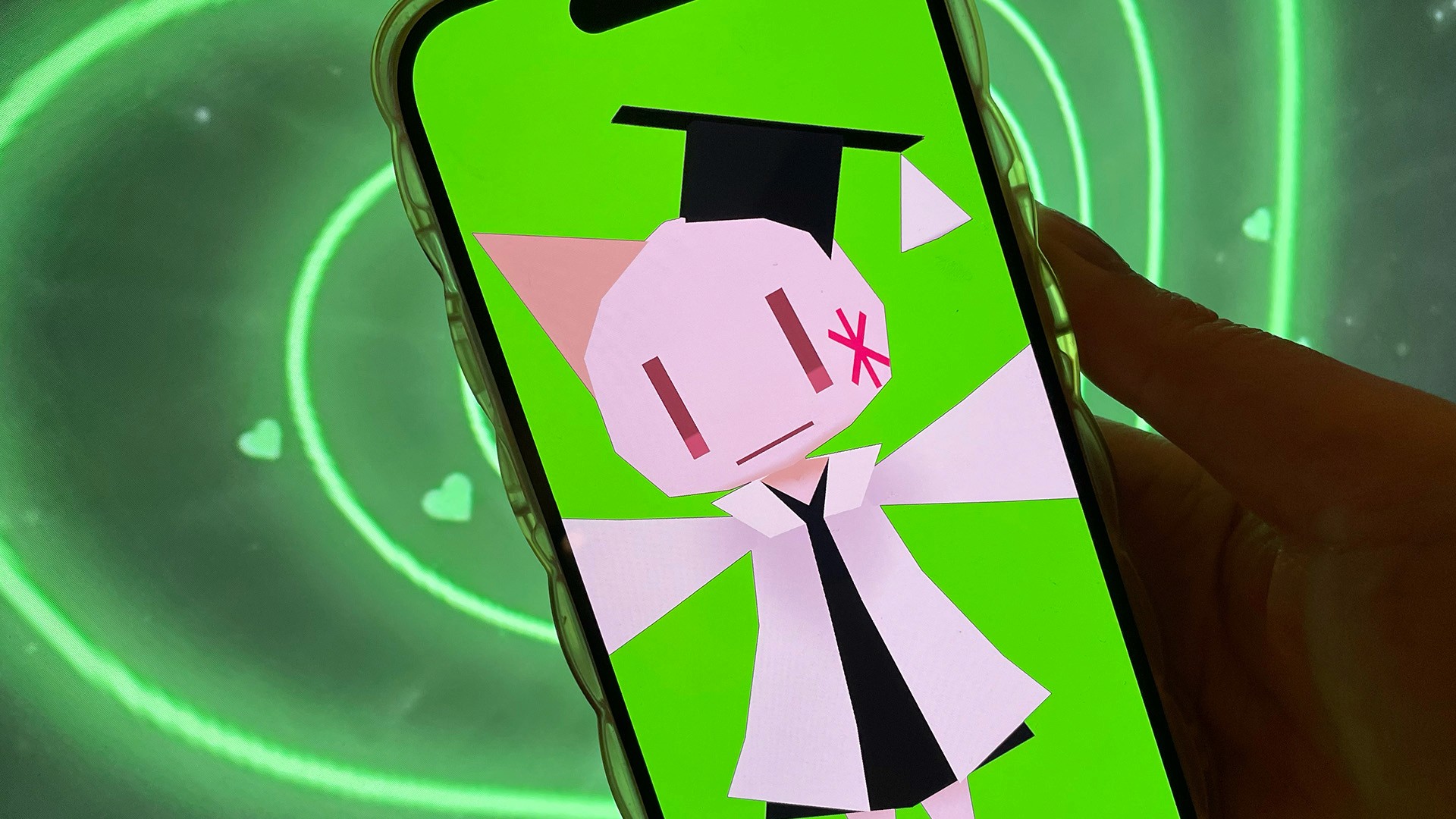
Here is a VRM optimization guide for VTubers to make sure that your VRM is compatible with Hyper. We discuss most of the issues that our users could potentially face while trying to import their VRM into Hyper.
How to optimize your VRM for VTubing with Hyper Online
Avatar Polygon Count
My avatar is loading extremely slowly! What can I do?
All 3D models are made out of polygons or triangles and model size increases proportionally with polygon count, making the file heavier and harder to process. While a higher polygon count might make your 3D VTuber avatar look more realistic or detailed, it could be difficult for your mobile device to handle.
It’s best to optimize your avatar to the lowest possible number of triangles for performance. We recommend 50,000 polygons or lower with a modern device like an iPhone 13 Pro — this is a number that even AAA games won't need for their characters.
Mouth Blend Shapes
Help! My mouth looks a bit wonky!
Blend shapes are the standard method of creating facial expressions for 3D characters. When rigging your VRM, it’s important that the mouth area is rigged correctly. In all cases, the blend shape values should be rigged between 0 (neutral) and 1 (maximum movement). If your VRM avatar’s mouth is incorrectly rigged, it will have undesirable results and can look unnatural when you use it while VTubing.
Although Hyper supports two sets of face blend shape definitions (VRM’s default blend shapes and PerfectSync blend shapes), we recommend Perfect Sync for better expressions. You can see the documentation for blend shapes we support below:
VRM Default Blend Shapes
The documentation for blend shapes is available in the official GItHub repository of the VRM specification. The VRM extension “Morph setting” allows you to select from 17 blend shapes including Neutral.
Link to documentation: https://github.com/vrm-c/vrm-specification/blob/master/specification/0.0/README.md#vrm-extension-morph-setting-jsonextensionsvrmblendshapemaster
The presets for blend shape groups supported are available in this JSON array:
["Neutral","A","I","U","E","O","Blink","Joy","Angry","Sorrow","Fun","LookUp","LookDown","LookLeft","LookRight","Blink_L","Blink_R"]
ARKit Blend Shapes (Perfect Sync)
PerfectSync blend shapes are the recommended method for adding blend shapes because it allows for better expressions. You can select from 52 blend shapes, and the documentation on how to set it up is available as a part of ARKit on the official Apple Developers website.
Link to documentation: https://developer.apple.com/documentation/arkit/arfaceanchor/blendshapelocation
Additionally, the GitHub repository hinzka/52blendshapes-for-VRoid-face contains a model which is a modification of the official VRoid Studio VRM model with the 52 blend shapes and auxiliary shapes that are compatible with iPhone's facial expression tracking function. In this open source project, both male and female body models are available to download.
Link to repository: https://github.com/hinzka/52blendshapes-for-VRoid-face
VRM Animations
My VRM is not moving correctly.
In order for the VRM to animate correctly, you have to make sure that the VRM has a face mesh. A mesh is a geometric projection consisting of anchor points that help to control a face’s movement.
The documentation is available in the official GItHub repository of the VRM specification.
Additionally, the VRM documentation website also provides a Humanoid Overview for more details.
VRM's humanoid bone definitions are used for animation. head, leftEye, rightEye are important because these are used for the face tracking and camera control.
https://vrm.dev/en/univrm/humanoid/humanoid_overview.html
Shaders and textures for Hyper VRM Vtubers
If your texture is not loading correctly, it might mean that your shader is not correct or is currently unsupported by Hyper. A shader is a tool that applies the light, darkness, color, and textures on 3D models. We use original shaders so make sure that the shaders in your model are suited for VRM format and are not custom to Unity or any other 3D engine.
Additional Questions
Thanks for reading and we hope to see you in the Hyperverse! ✨
Additional Guides
You can easily configure Hyper to work with any third party streaming software like OBS or Streamlabs. To learn more, check out our guides:
- All about Hyper Online
- Import VRMs and use a custom character
- Setting up Collab Streams
- Use Hyper with Discord Webhooks
- Mirror your VTuber from iPhone to your PC
- Livestreaming with avatars using OBS
- VRM Optimization Guide
- Vtubing with Hyper's OBS plugin