Welcome to Hyper! We're an avatar social network that makes it easy for VTubers (Virtual YouTubers) to make videos and live-stream using avatars. Hyper uses motion capture to bring your vtuber to life with realistic facial animations and a suite of tools for beginners and professionals. Record and post on our app, or export your avatar through OBS (Open Broadcasting Software) if you have a preferred desktop setup.
In this guide, we show you how to quickly get started with Hyper by going over some of our main features. You can build your own avatar in-app, learn how our cutting-edge face and hand tracking works, and livestream directly from the Hyper app.
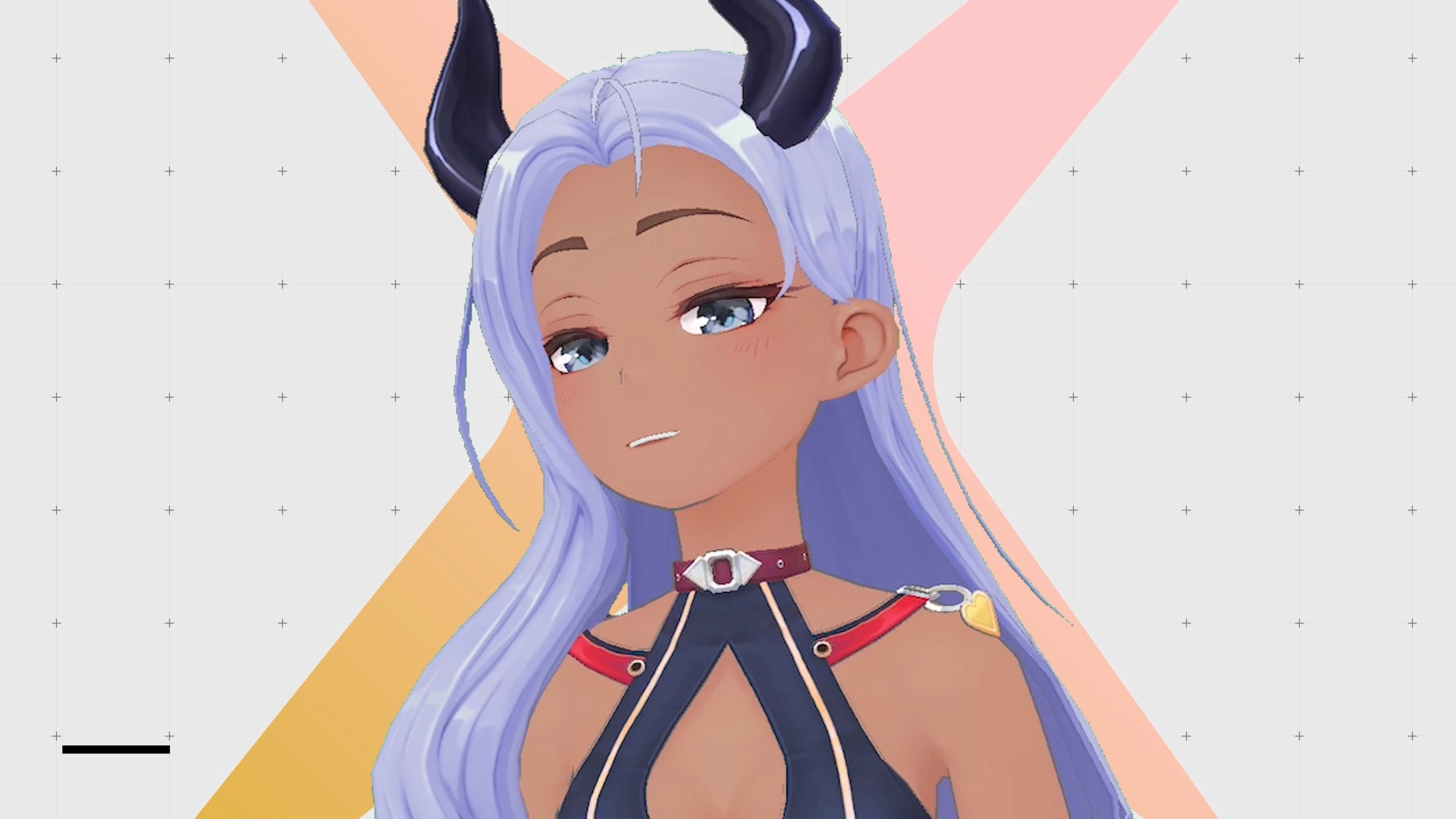
Once you master this, you can easily use Hyper to do many more cool things like recording avatar videos for TikTok or even attending Discord or Zoom calls with your avatar through OBS.
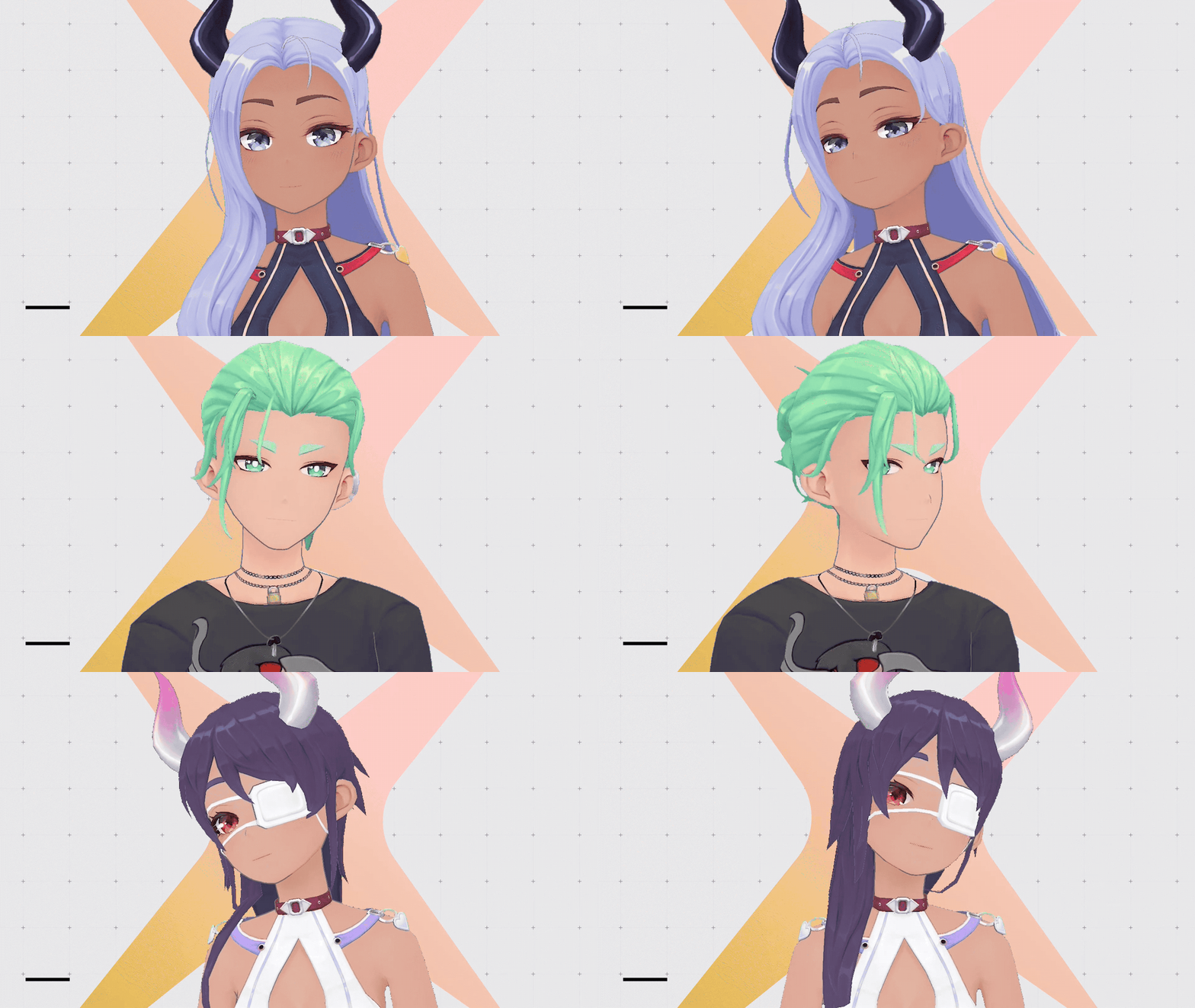
Start Vtubing on a Phone Application with Hyper Online
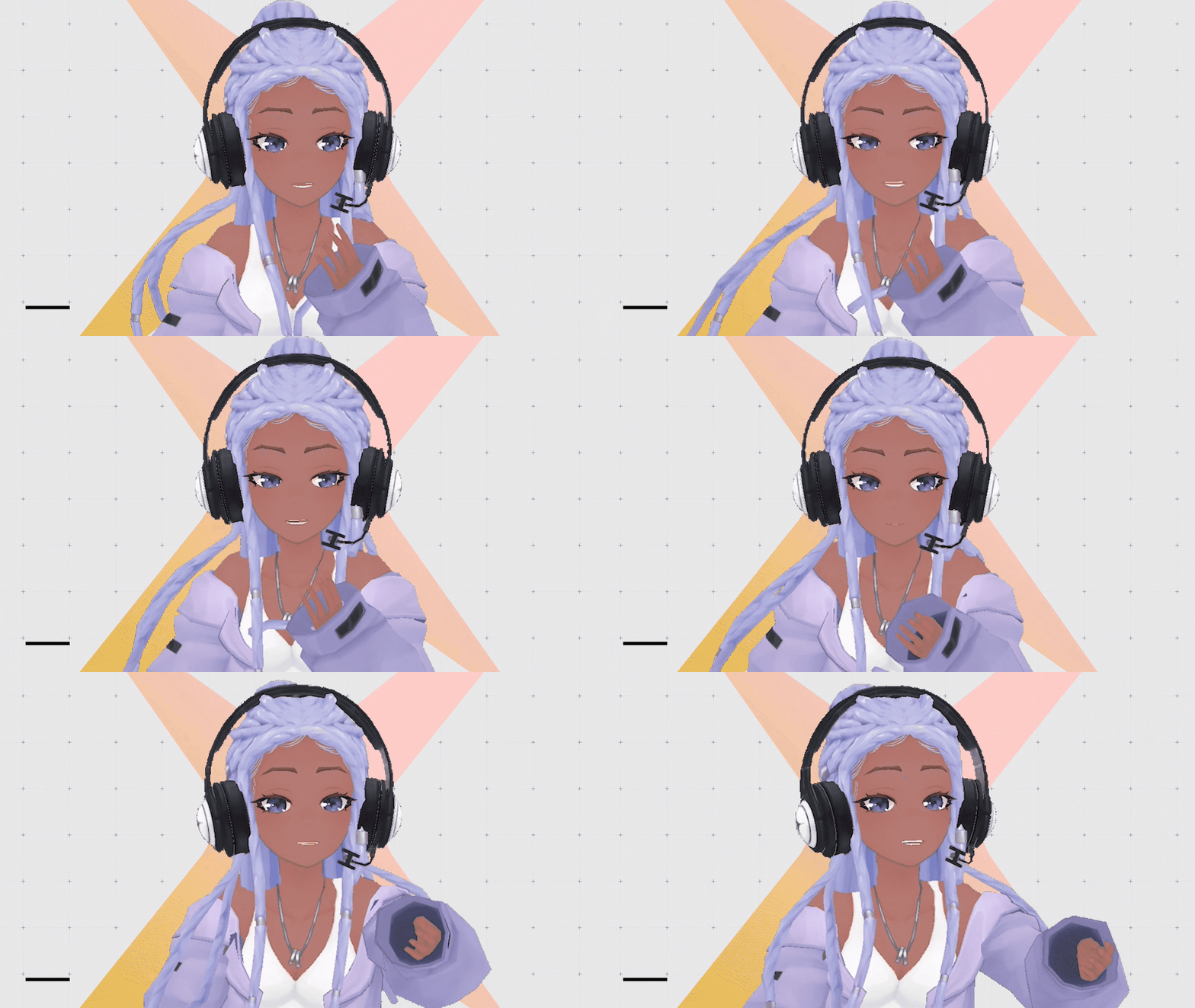
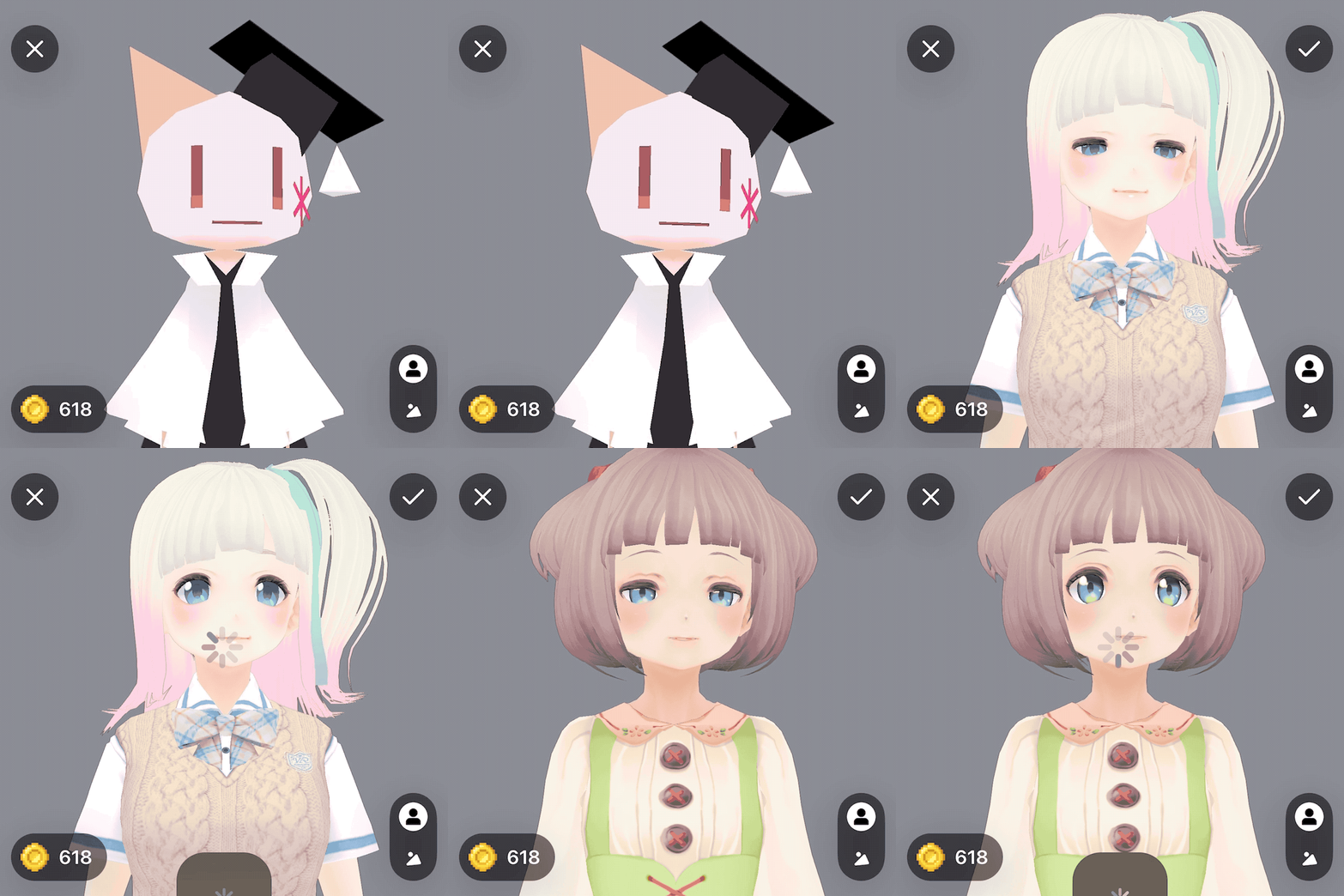
Build your avatar or Vtuber!
Making a Vtuber avatar with Hyper just takes a few simple steps. To start, click the avatar button on the Hyper app home screen. You can then customize your avatar’s wardrobe, facial features, and backgrounds with just a few simple clicks.
We roll out new items every month so keep checking regularly and go to our Discord to make any specific requests.
Face tracking and Hand tracking as a Vtuber (beta)
Hyper uses your phone's camera to intelligently control your avatar's face, making your avatar come to life. This enhances your VTubing experience by mimicking any move you make in real life. We recommend positioning your phone 1–2 feet away for best results.
Right now, face tracking only works on iOS devices with a TrueDepth camera (devices that support FaceID), but we're working on bringing support to more devices very soon.
Hand tracking has been temporarily disabled as we add some upgrades and will return soon. We will continue to improve this over time, so please keep an eye out for that.
Using VRMs to Vtube on Hyper
Many VTubers already have existing avatars. Using Hyper doesn’t mean that you need to create your avatar from scratch, you can easily use your own avatar by importing the VRM on Hyper. For a quick and easy tutorial, read How to Import VRM files on Hyper.
Live-streaming as a Vtuber
We currently offer live-streaming within our application but for our VTubers and power users, we also allow you to import your character to OBS or any other streaming software easily.
In-App Live-streaming:
- To start a live stream within the application, click the live button on the home screen. Don’t worry, the live stream doesn’t start right away!
- You first enter a staging zone where you can customize your stream by adding and placing photos, props, text, or custom drawings before starting.
- Once you’re happy with your live stream, click start on the bottom left menu.
- An option menu will pop up. Enter your topic and select where you want to stream: if you want to stream to a particular platform like Twitch or YouTube, just configure your stream keys.
- Click start and you're live!
Live-stream Orientation
The stream orientation option allows you to rotate the canvas so that you can use your device horizontally or vertically, letting you focus on showcasing your talent.
Additional Livestream Tooling
We've created a few easy-to-use features to make your stream more lively. Check out the tools on the far-right of your screen to try them all.
OBS & Streaming Software Integration
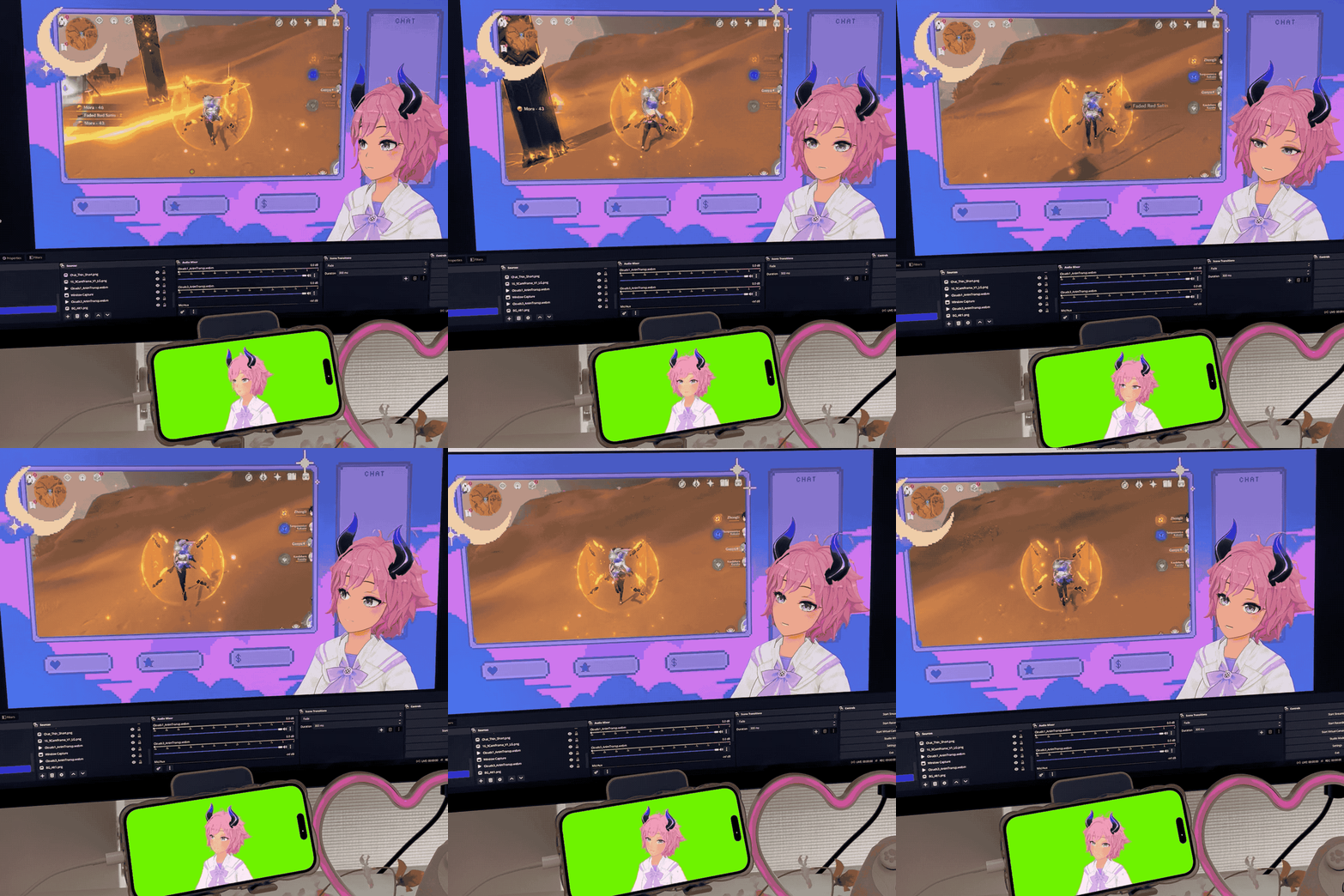
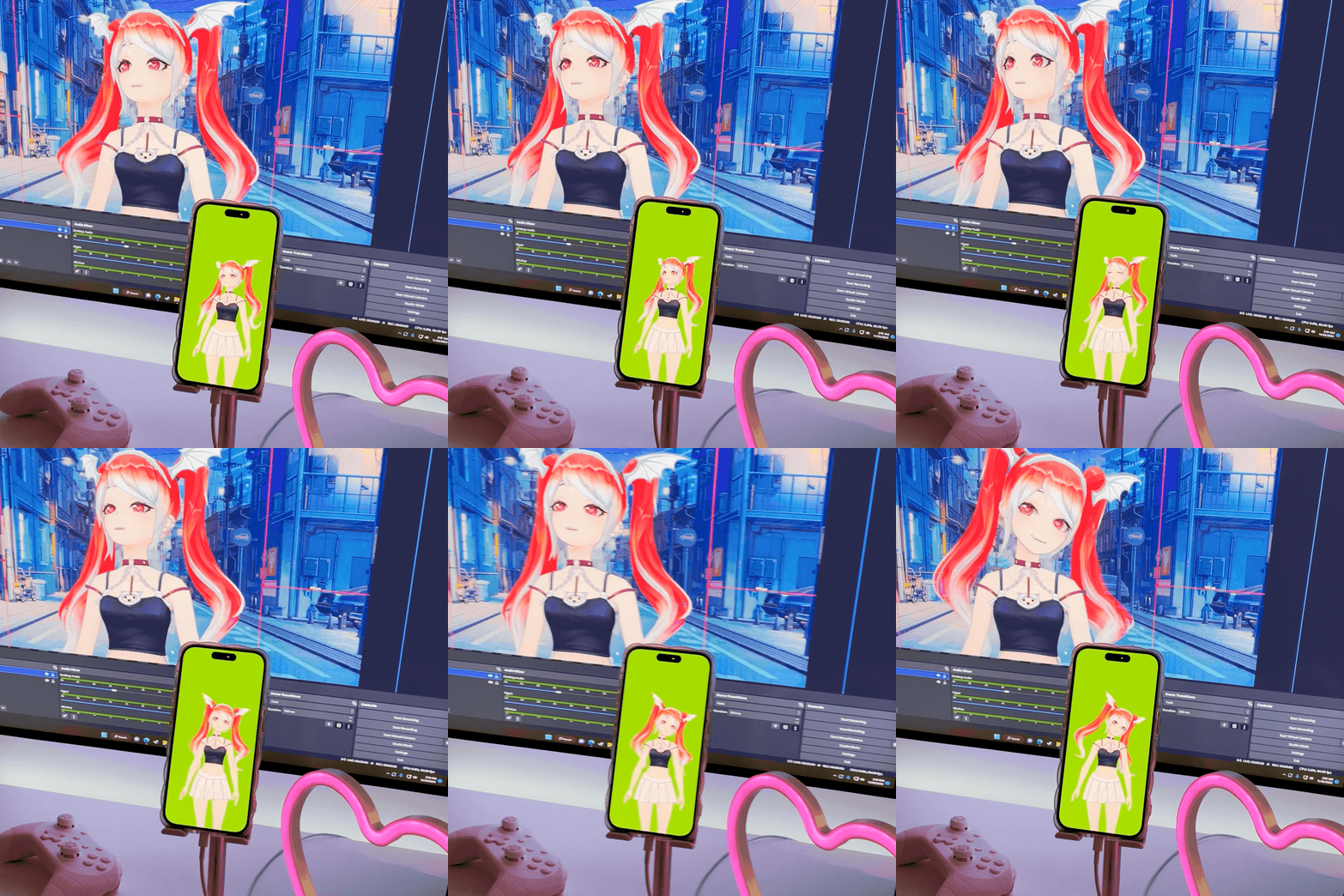
The OBS tool allows you to configure Hyper to easily work with other streaming software. This button hides all of our user interface and sets a chroma key background (a green or blue screen) for VTubers to easily import your avatar to any software.
You first enter a staging area where you can customize your stream just like the livestream setup and when you’re done, click save and the generated video output can now be shared from your phone to your computer. To reset your settings or exit OBS mode, just shake your phone!
Additional Guides
You can easily configure Hyper to work with any third party streaming software like OBS or Streamlabs. To learn more, check out our guides:
- All about Hyper Online
- Import VRMs and use a custom character
- Setting up Collab Streams
- Use Hyper with Discord Webhooks
- Mirror your VTuber from iPhone to your PC
- Livestreaming with avatars using OBS
- VRM Optimization Guide
- Vtubing with Hyper's OBS plugin
Feedback
Have a feature request? Want more avatar items that represent you? Drop us an email at feedback@hyper.online or join the Discord to tell us what you have in mind.
See you in the Hyperverse! ✨