Hyper is an avatar social network where VTubers can post to their feed, livestream in-app, or even stream to other apps such as Twitch or YouTube using the OBS mode. We use motion capture to bring your VTuber to life with realistic facial animations and a suite of tools for beginners and professionals. Record and post on our app, or export your avatar through OBS if you have a preferred desktop setup.
Sending Hyper Online Posts to Discord with Webhooks
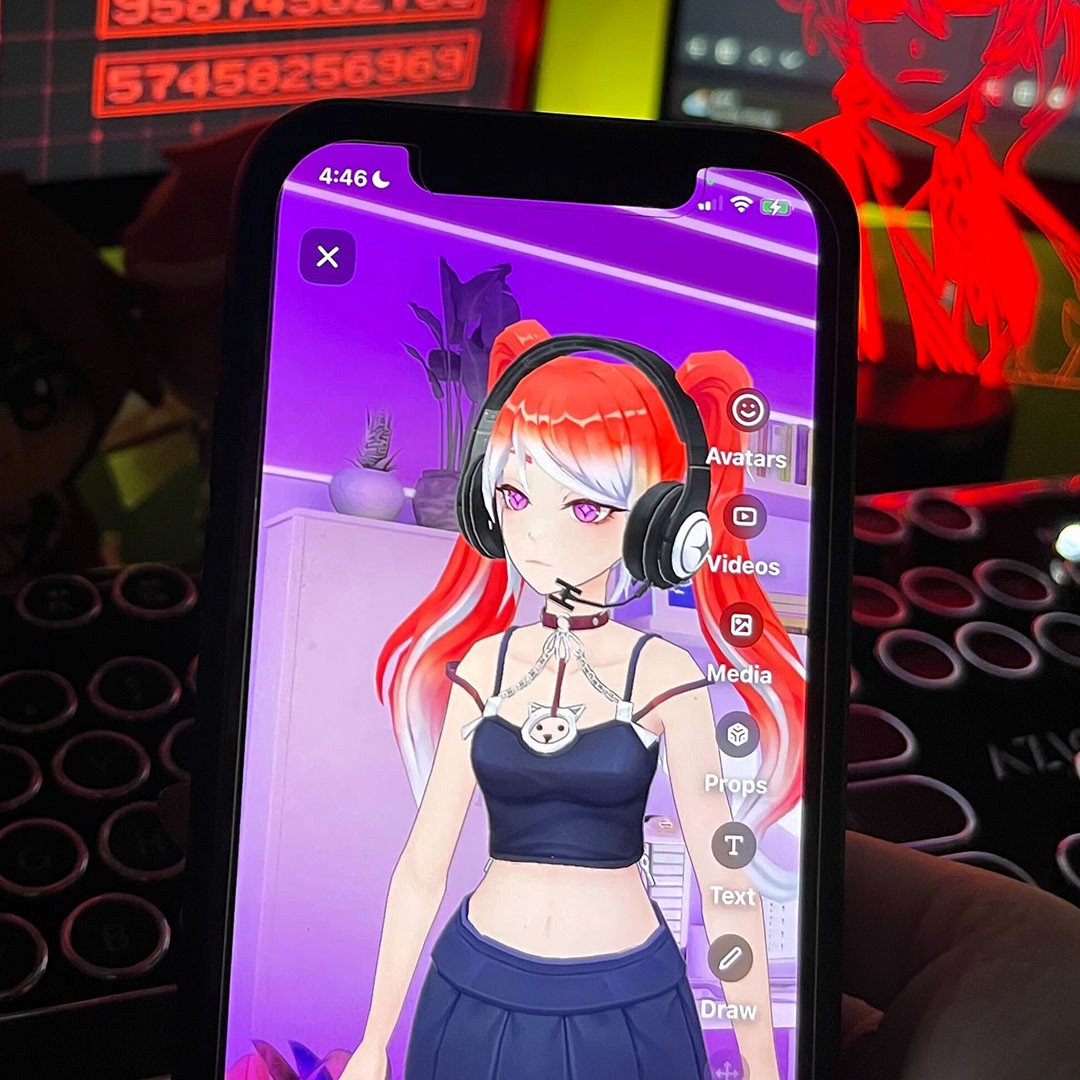
To keep your community up to date, we also support automatically sharing updates to your Discord channel. If you’re a Discord moderator, or have your own Discord, you can send Hyper announcements directly into your server’s channels. We currently support:
- Announcing Lives when you start livestreaming in the Hyper app.
- Announcing Posts when you post to the Hyper Feed.
This is a really great way of expanding your Hyper’s stream reach and ensuring that your friends and fans get updates every time you post or go live on the Hyper app. In this article, we talk about the process of adding Discord Webhooks on Hyper to send an automated update to your Discord channel every time you create content on the Hyper app.
We’re currently letting Hyper users configure one Discord destination for free. This may not last forever, so set it up while you can!
About Discord Webhooks
Hyper uses a feature called Discord Webhooks to send notifications to your Discord. A webhook is essentially a custom-generated URL that you can use to connect two applications. In this case, a Discord Webhook helps you connect your Discord channel with your Hyper app. It’s like a Discord Bot, but instead of having access to your whole server and reading messages, it can only send messages to one channel.
To set up this feature, you’ll need to have Webhook permissions for the Discord Channel to which you want to send automated messages.
Setup on Discord
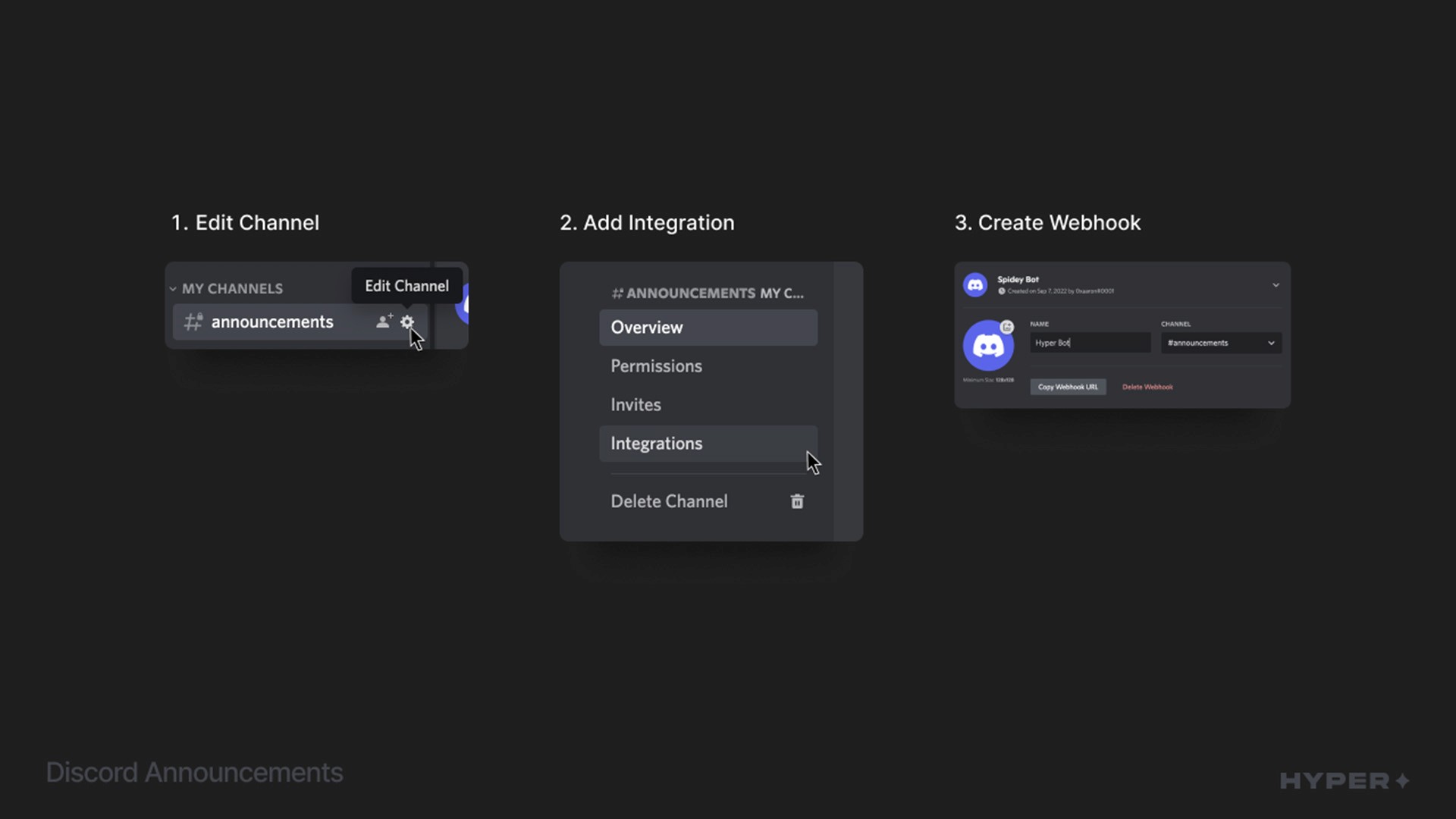
The 3 steps needed for setting up a Discord Webhook — edit channel, add integration, and create webhook
- In a Discord you own or moderate (you must have Webhook permissions), click the Settings (cog) icon next to a channel name and open the Integrations menu.
- Select Webhooks and create a new one. Give it a name and an optional photo or icon. The name and photo you set will be how the sender of the messages is displayed in the channel.
- Once you’re happy with the name and photo, click Copy URL to get the Webhook URL.
- Next, hit Save and your Webhook is created!
Setup on Hyper
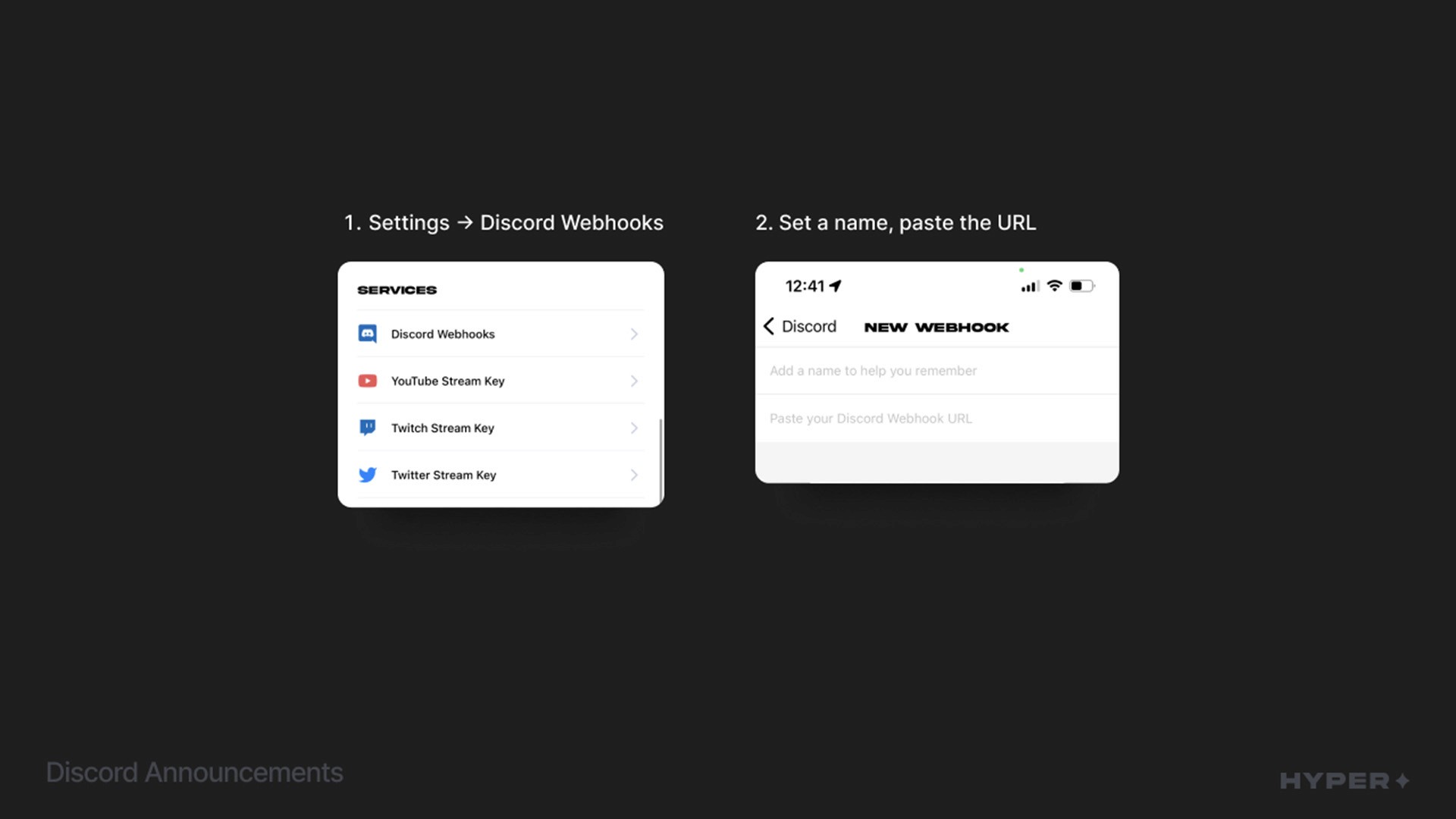
The steps for adding a Discord Webhook on Hyper
Note that you must be using Hyper version 0.5.38 and above to connect with Discord.
- Once you’ve copied the URL, go into your settings on Hyper and scroll to the Services section. Tap on Discord Webhooks to add a webhook.
- From here, hit the New button at the bottom and enter a name to help you remember your Webhook.
- Paste the Webhook URL into the URL field. Webhhooks are typically long URLs so other people can’t guess them, so it’s best to send it to your phone instead of typing it in manually to avoid a mistake.
- For a limited time, all users will be able to create a destination. Hit Save.
Sending to a Discord
- Once you’ve completed the steps above, you should be able to select the Discord destination when you go Live or when you make a Post in the Hyper app.
- Once your Live or Post is up, the Webhook should announce it in the channel for which you created the Webhook.
- Now, your Discord members will be able to watch your Hyper Live or Hyper Post on the web or the app just by clicking on the link in the message.
Need help? Have questions?
VTubers can engage their Discord communities with our new webhooks feature on Hyper. Send out content to your audience in just a simple click!
Or simply chat with us – we are always here for any request or suggestion you have! You can tag us on your social media posts with the hashtags #hyperonline and #hyperavatar.
Thank you so much for reading. See you in the Hyperverse! ✨
Additional Guides
You can easily configure Hyper to work with any third party streaming software like OBS or Streamlabs. To learn more, check out our guides:
- All about Hyper Online
- Import VRMs and use a custom character
- Setting up Collab Streams
- Use Hyper with Discord Webhooks
- Mirror your VTuber from iPhone to your PC
- Livestreaming with avatars using OBS
- VRM Optimization Guide
- Vtubing with Hyper's OBS plugin