Welcome to Hyper! We're an avatar social network that makes it easy for VTubers (Virtual YouTubers) to make videos and live-stream using avatars.
We use motion capture to bring your vtuber to life with realistic facial animations and a suite of tools for beginners and professionals.
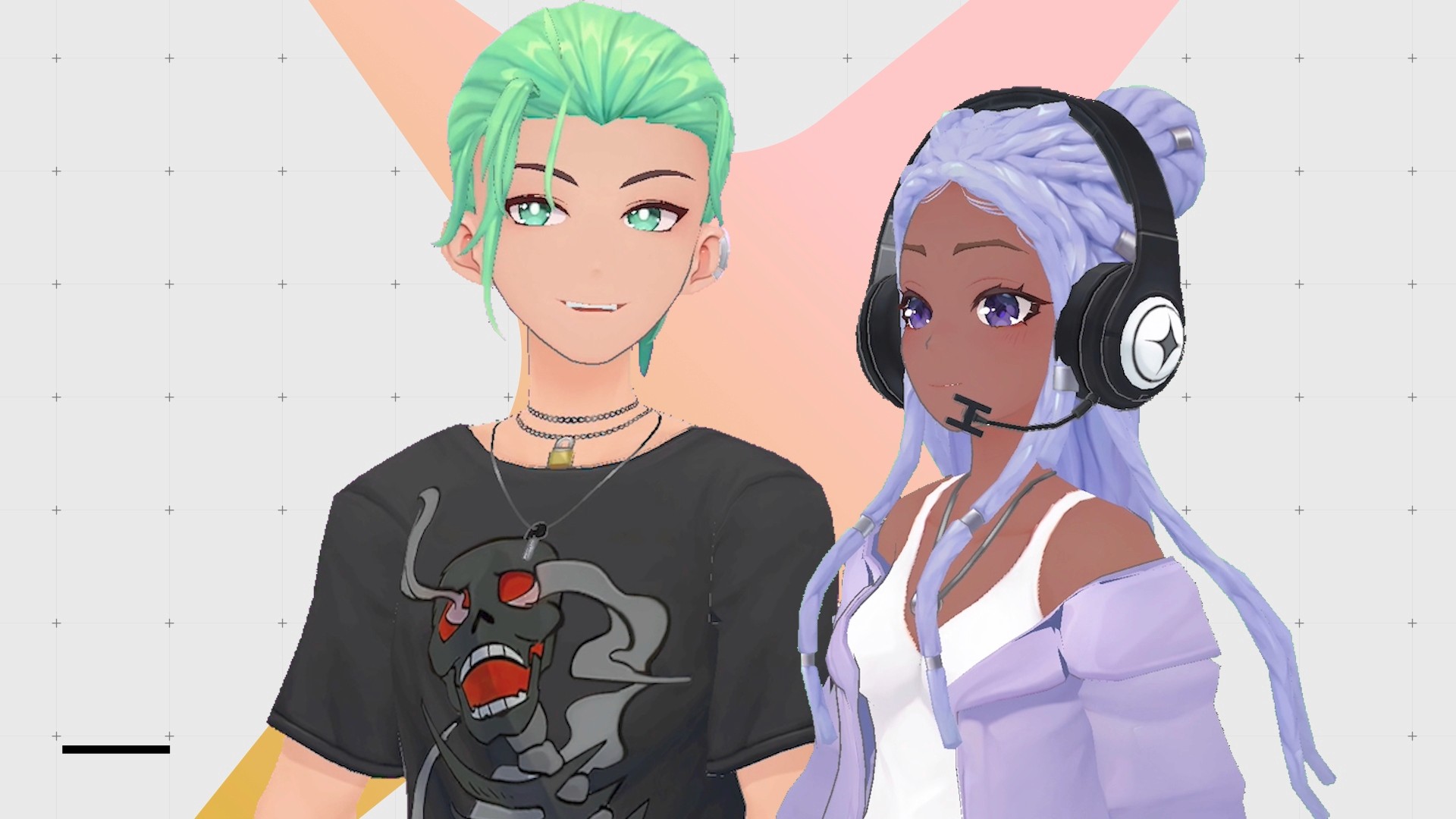
Easy Vtuber Collaboration Tool with Hyper Online Application
Hyper is an avatar social network for VTubers to create content with their avatars and livestream in-app or on YouTube, Twitch, Discord, or Zoom using OBS (Open Broadcasting Software). OBS is a desktop-based streaming software that allows you to stream on video-sharing apps such as YouTube and Twitch and even enables you to use your avatar for video calls in apps like Zoom or Discord.
In this guide, we focus on the process of setting up a collaborative stream with another VTuber through OBS. We first discuss the process of connecting Hyper to your desktop and then setting up OBS. For a detailed guide on this topic, see our article Livestreaming with Avatars on OBS for VTubers or Hyper’s iPhone to PC Mirroring Guide for VTubers.
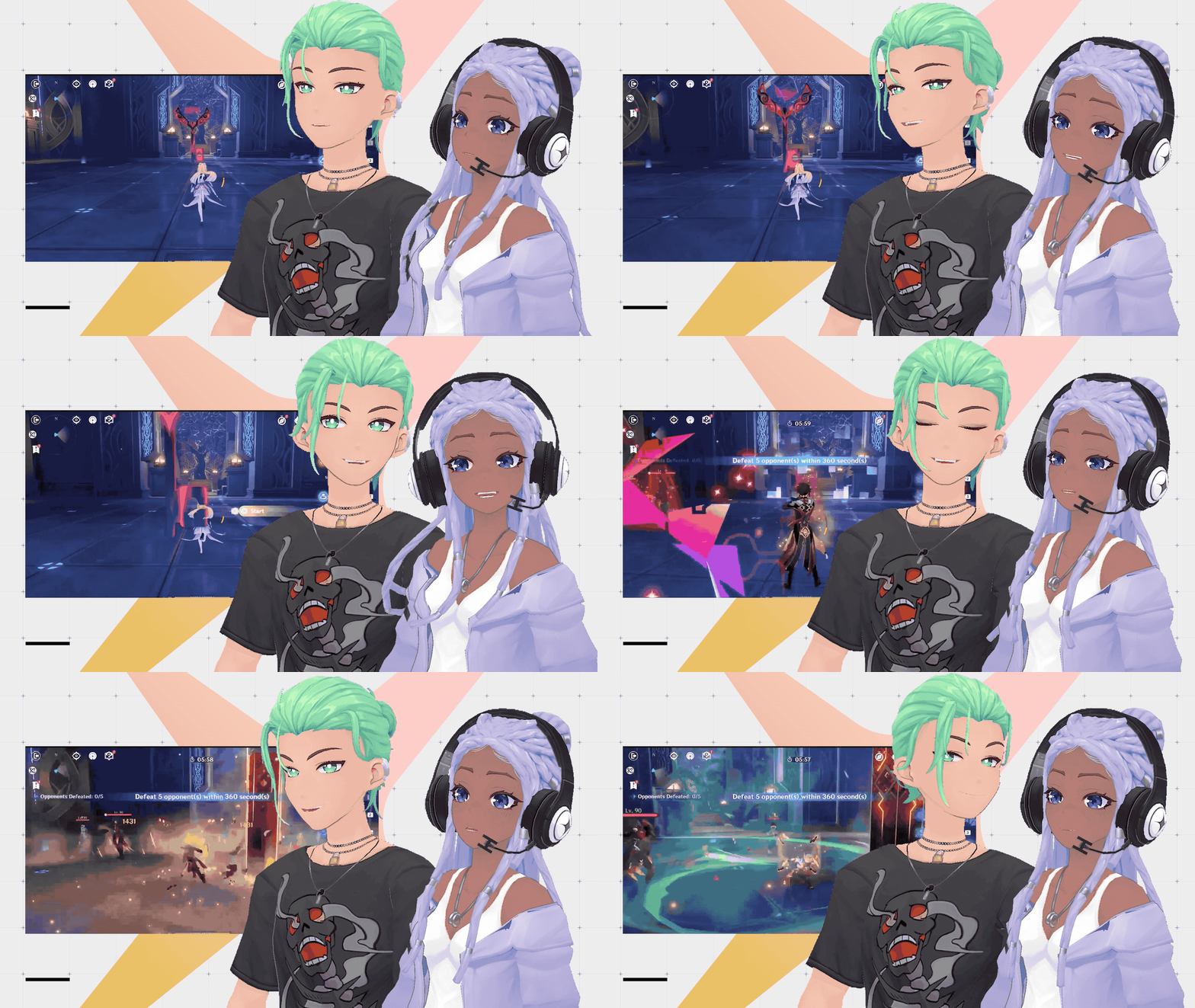
This article is a step-by-step tutorial that explains how to add a partner VTuber to the stream using OBS.
Plugging Hyper Into Your PC or MacBook
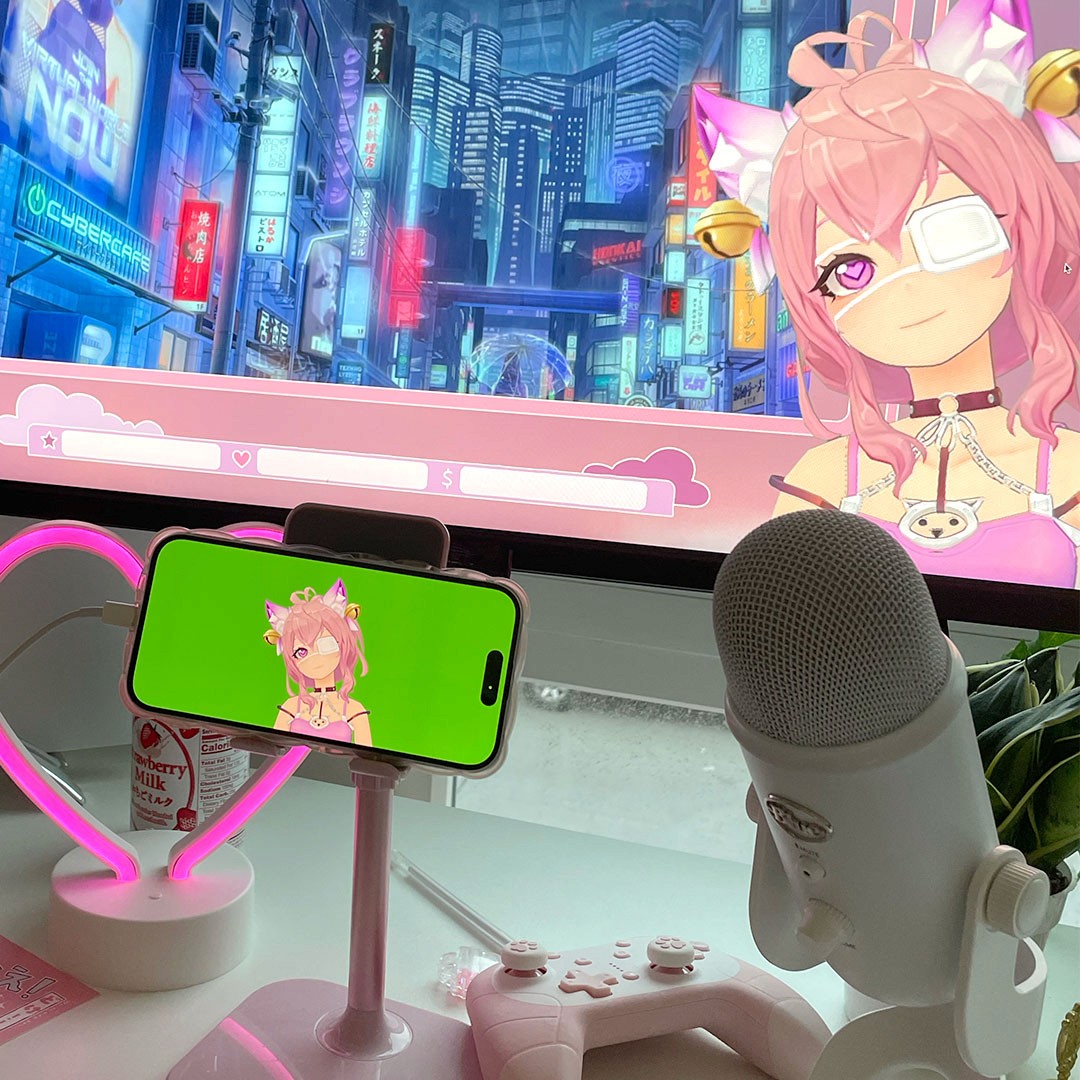
Before we can get started on setting up OBS with Hyper, we need to connect the iPhone with the Hyper app to the desktop so that OBS can receive the video input from the phone.
For Mac users
If you're using macOS, your computer will natively detect any attached iPhone as a video input, so you only need a cable to attach your iPhone to your Mac.
For PC users
If you're using Windows, you'll need to mirror the screen of your iPhone using extra hardware or software. For now, we recommend screenplay mirroring software to achieve this. Check out Hyper’s iPhone to PC Mirroring Guide for VTubers to find out how to do this.
We're had good results with this set up so far and we recommend using this capture card with an HDMI to Lightning adapter and a USB-C to USB-A cable:
- Capture Card: Elgato HD60S+ on Amazon
- HDMI to Lightning Dongle: Apple Lightning Digital AV Adapter
Windows Configuration
We recommend the following way of configuring the capture card with your Windows device:
- Insert the USB-C cable into the side of the capture card marked In.
- Put the other side of the USB-A cable into your computer.
- Place the HDMI cable into the side of the capture card marked In.
- Put the other side of the HDMI cable into the HDMI to Lightning Dongle
- Insert the HDMI to Lightning Dongle into your iPhone.
- Optionally plug another lightning cable into the HDMI to Lightning Dongle to charge your iPhone while using the app.
See these guides for more information:
- Vtubing with Hyper’s OBS Plugin for Windows
- Live-streaming with avatars using OBS
- iPhone to PC Mirroring Guide for VTubers
Starting OBS Mode on Hyper
The OBS mode on Hyper has been designed specifically for streaming through external software and allows VTubers to configure their avatar and scene before beginning the stream. To get started with OBS mode on Hyper:
- Open the Hyper App on your iOS device.
- Navigate to the Record button
- Click on OBS and then select Setup OBS once you’re done staging the scene.
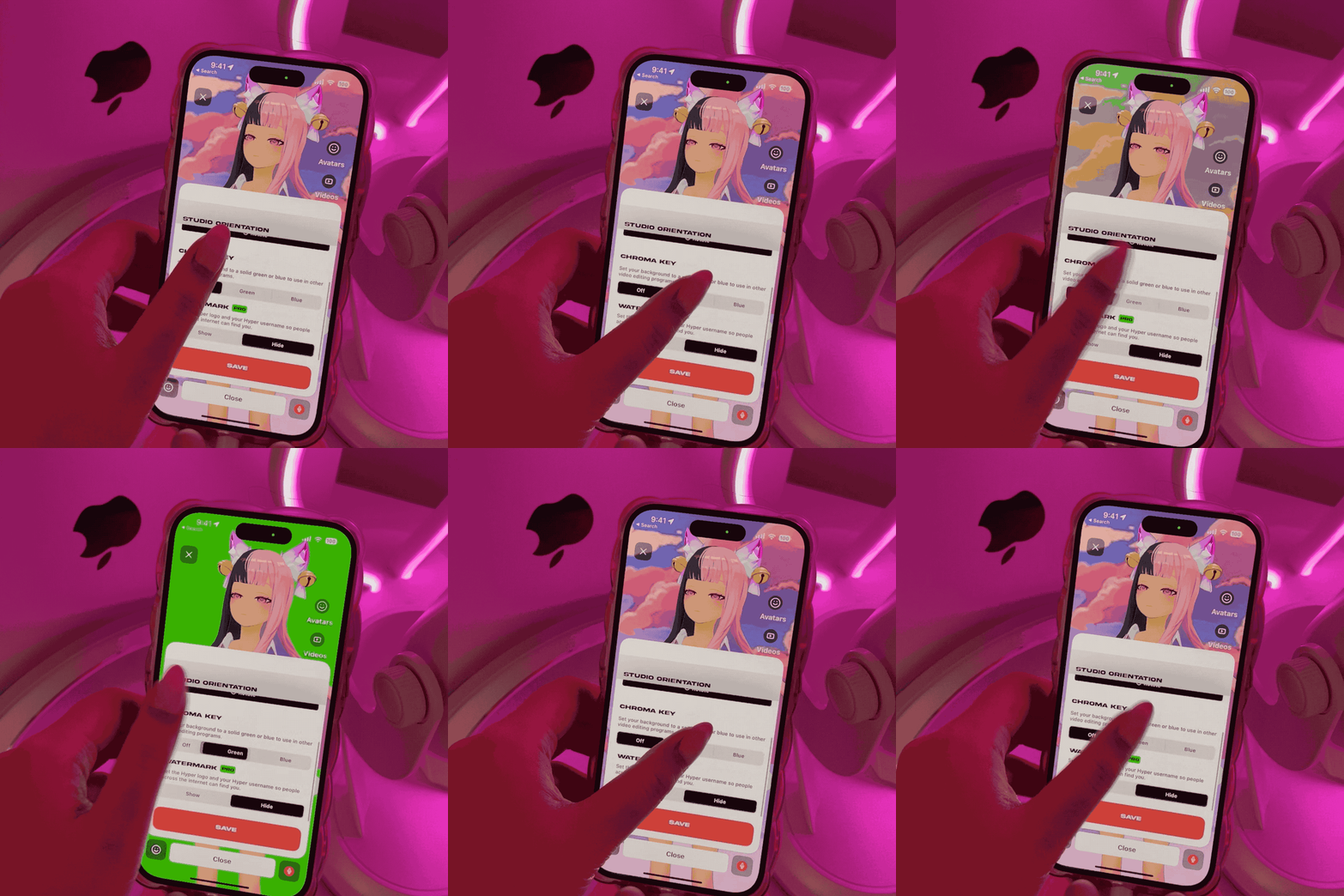
- Configure your studio orientation (landscape or portrait based on the frame you want to film), and adjust your chroma key color (this can be a green or a blue background that helps remove the background from your avatar).
- Then, Start OBS Mode.
- When you’re done streaming, you can shake your phone to exit OBS mode.
Pro tip: Make sure that your phone is charged and “Do Not Disturb” focus mode is enabled. This ensures that you have a seamless streaming experience without any interruptions.
Configuring OBS for Streaming
VTubers often stream their gameplay footage alongside their avatar. To do this, you can configure your avatar in such a way that it has a transparent background and can be layered over the gameplay footage in OBS:
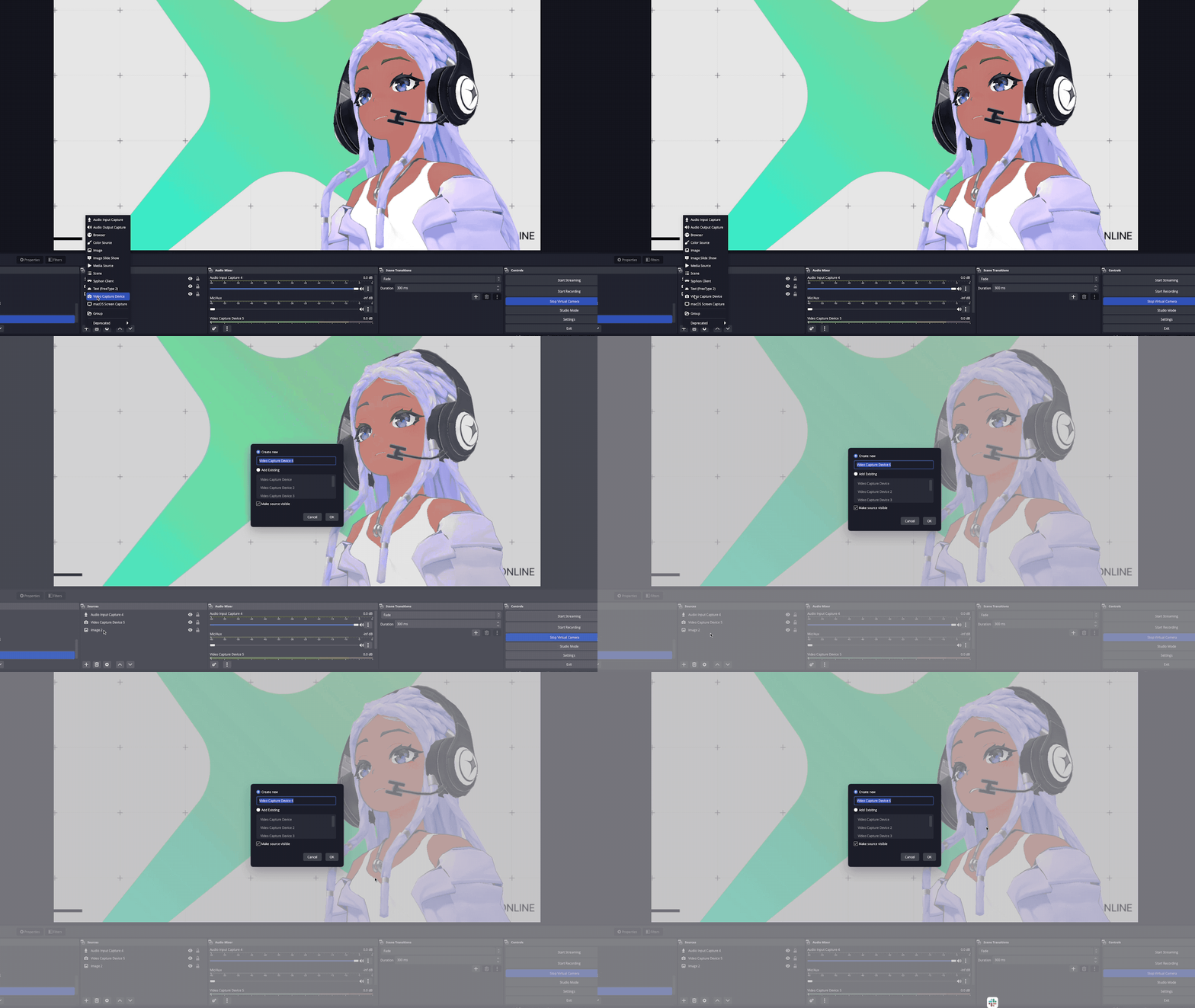
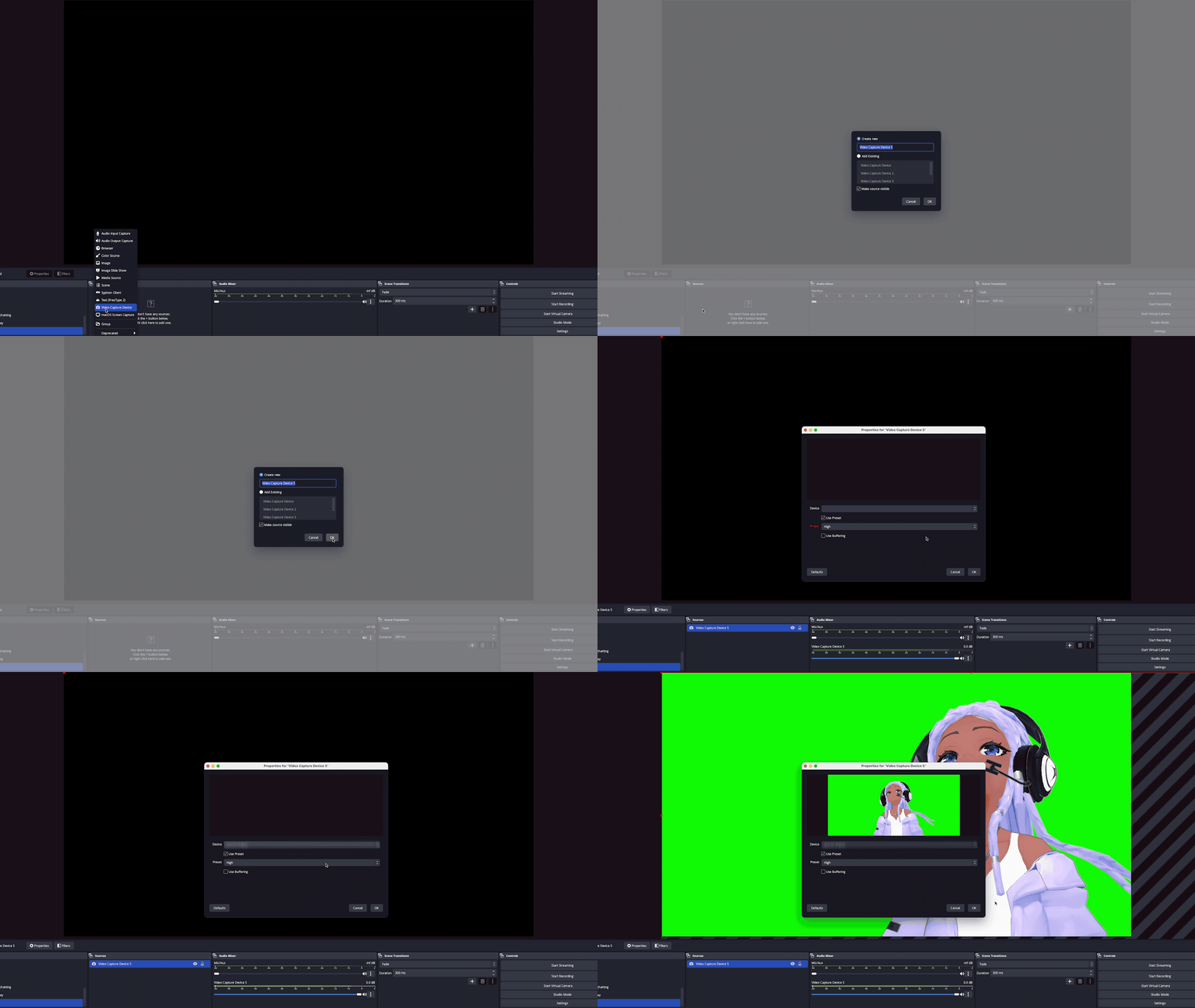
- Get your Hyper avatar into OBS. Note: if you’re using instructions from Hyper’s iPhone to PC Mirroring Guide for VTubers, the instructions might be slightly different.
Click the + in Sources.
- Add a Video Capture Device and name it.
- Under Device, select your phone and click ok.
Get your Hyper avatar into OBS. Note: if you’re using instructions from Hyper’s iPhone to PC Mirroring Guide for VTubers, the instructions might be slightly different.
- Click the + in Sources.
- Add a Video Capture Device and name it.
- Under Device, select your phone and click ok.
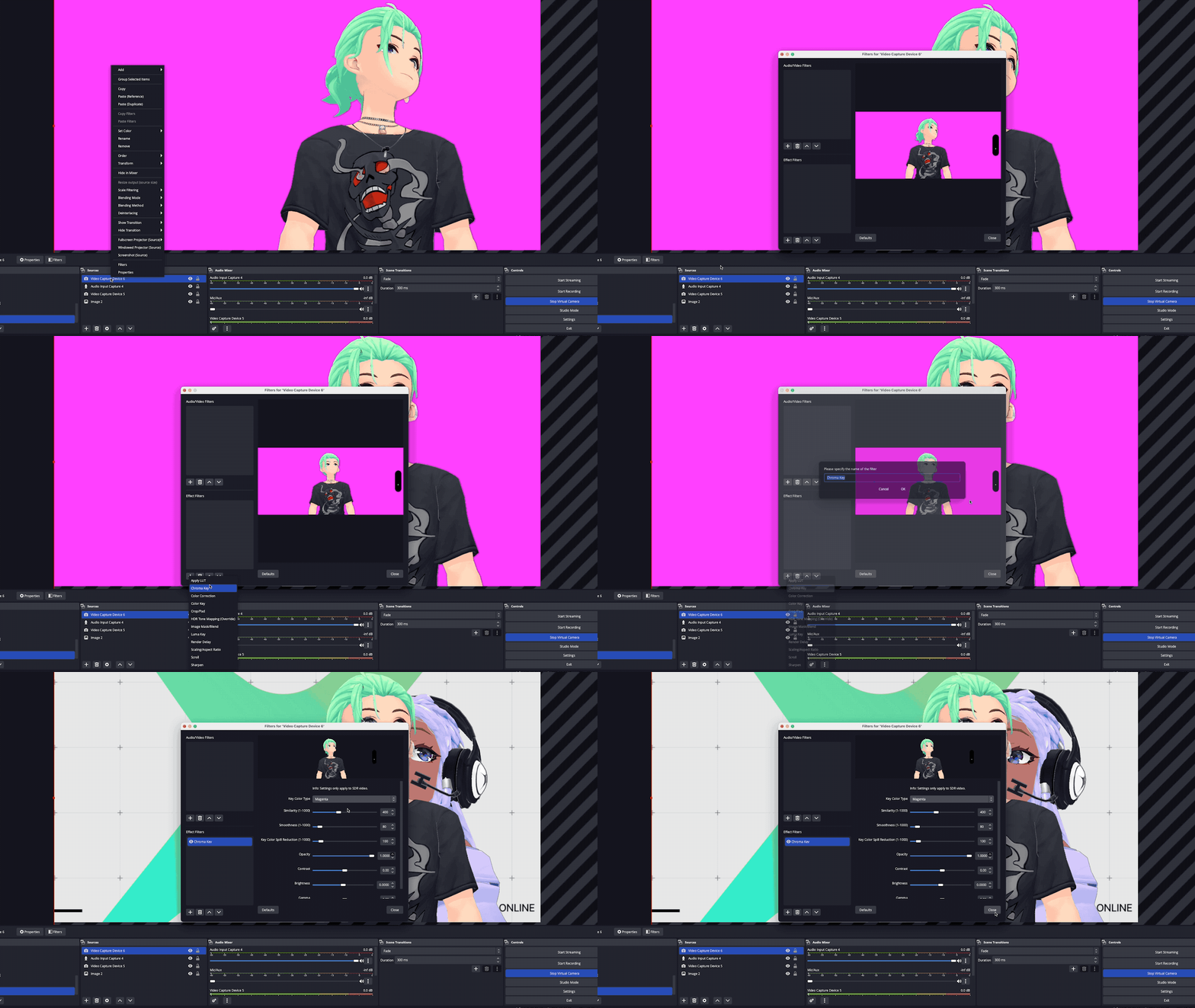
- Chroma key the background
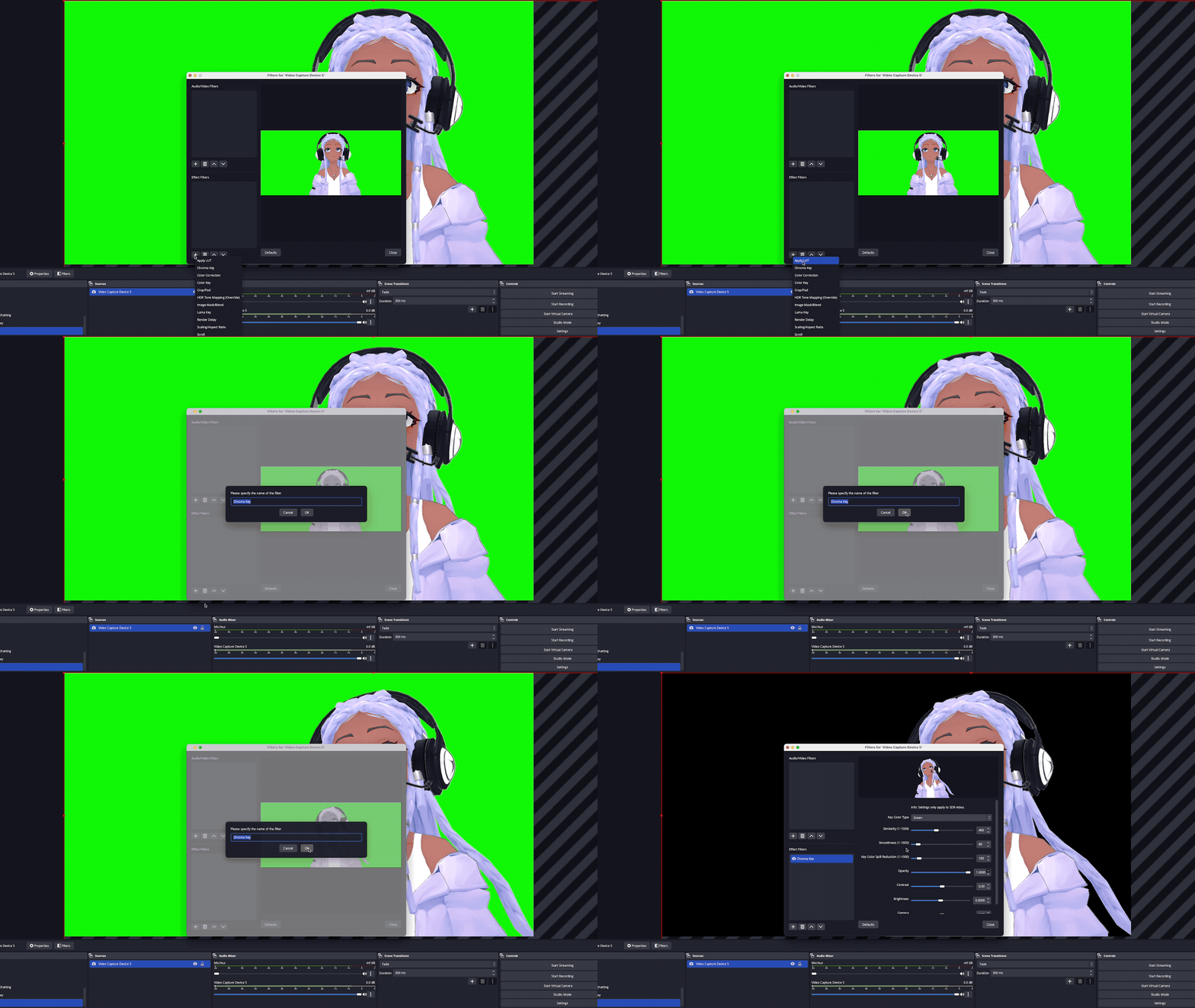
Right click the Video Capture Device and select Filters.
- Click the + icon and choose chroma key or color key.
- Configure the green or blue screen so that the background becomes transparent.
Chroma key the background
- Right click the Video Capture Device and select Filters.
- Click the + icon and choose chroma key or color key.
- Configure the green or blue screen so that the background becomes transparent.
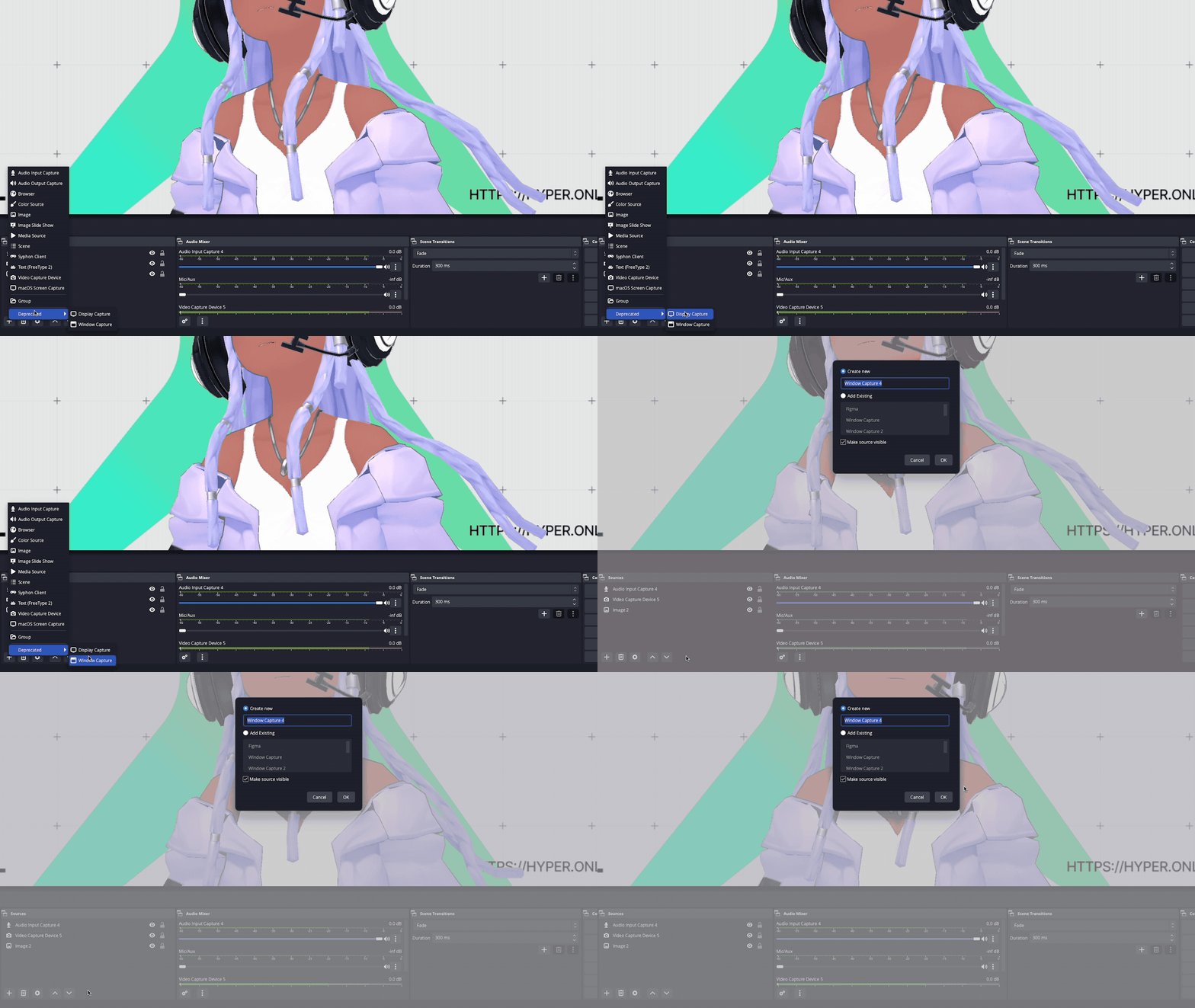
- Adding gameplay footage
Click the + in Sources.
- Select Game Capture Device and name it.
- Double click on the source and select a capture mode.
- For instance, we used the Capture Specific Window option and selected the Window as the Fortnite client as our gameplay footage that we already had open. This ensures that the selected window will only show Fortnite in OBS if it is running. We recommend using this setting for consistency.
Adding gameplay footage
- Click the + in Sources.
- Select Game Capture Device and name it.
- Double click on the source and select a capture mode.
- For instance, we used the Capture Specific Window option and selected the Window as the Fortnite client as our gameplay footage that we already had open. This ensures that the selected window will only show Fortnite in OBS if it is running. We recommend using this setting for consistency.
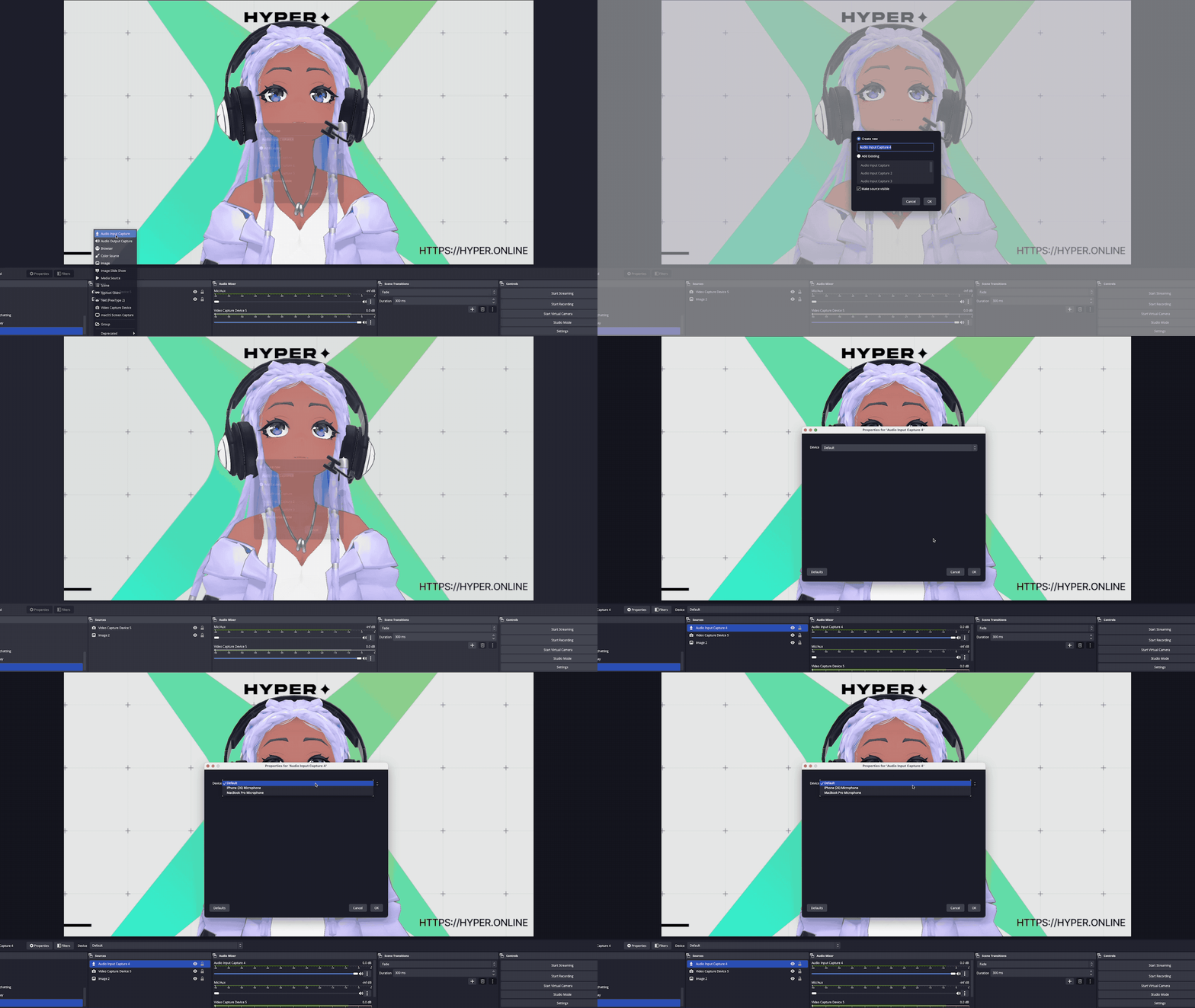
- Audio Information
Add an audio input device source and select your microphone of choice.
- Your partner VTuber’s audio will be through Discord so OBS will route that through the desktop audio.
Audio Information
- Add an audio input device source and select your microphone of choice.
- Your partner VTuber’s audio will be through Discord so OBS will route that through the desktop audio.
Note: If you wish to adjust your personal audio, the game audio, or your partner audio, it's best to do it either in the game settings or Discord settings respectively. If you adjust the desktop audio, you change both the game and your partner’s volume together.
Setting Up the Collab VTuber’s Avatar on OBS
Please note that your stream may look different from the example shown here based on your setup.
We recommend using a dual screen setup for the stream but if you do not have a second monitor, you can section two areas on your screen — one for gameplay and one for the Discord call. This allows you to access both applications simultaneously to effortlessly coordinate between the game and the stream.
- Create a private channel (or call) on Discord.
- Click Pop Out on the Discord call in order to turn it into a window and drag that over to a blank spot on your display.
- Have your partner go into OBS mode on Hyper with the green chroma background.
- Create a Display Capture source on OBS to capture the display on the second monitor or sectioned display (Optional: rename it as your partner’s camera).
- Right click on the Display Capture source and click Edit Transform. Tweak the settings until the only part of the second monitor or sectioned display being captured is the blank spot where you dragged your partner’s popped out discord call.
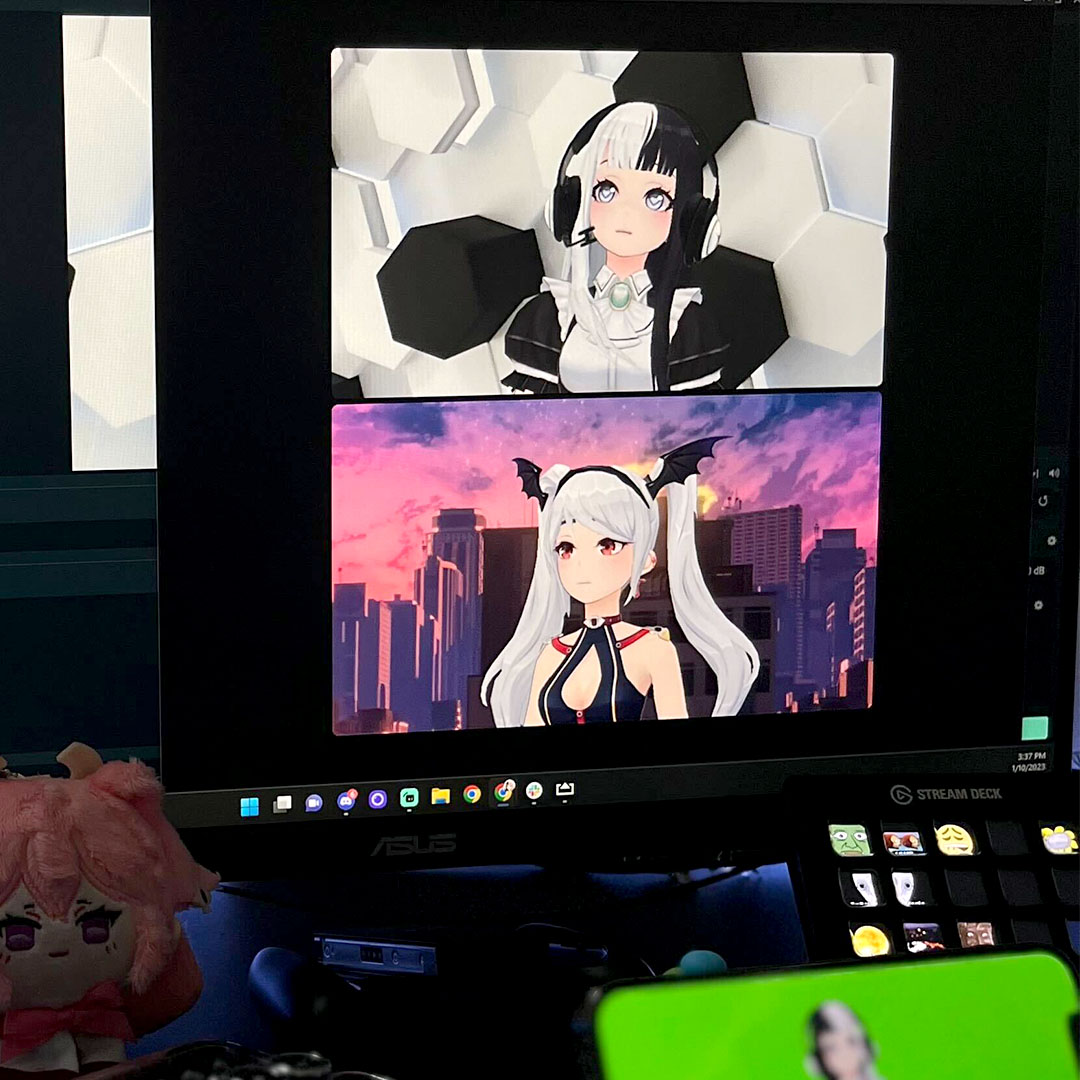
What shows up on OBS after all of the steps vs what is actually on the desktop
- Right click on that same Display Capture source, select Filters, and then click on Chroma Key. Tweak the settings to cut out the green screen and make a transparent background.
- Note that the Display Capture source is strictly capturing the selected portion of the screen or the blank spot where your partner’s avatar is. If you drag something across to the second monitor and it covers up the Discord call it will show up in front of your partner’s avatar on the screen.
The selected area is what is being selected as the camera source. Keep this area clear from everything except discord!
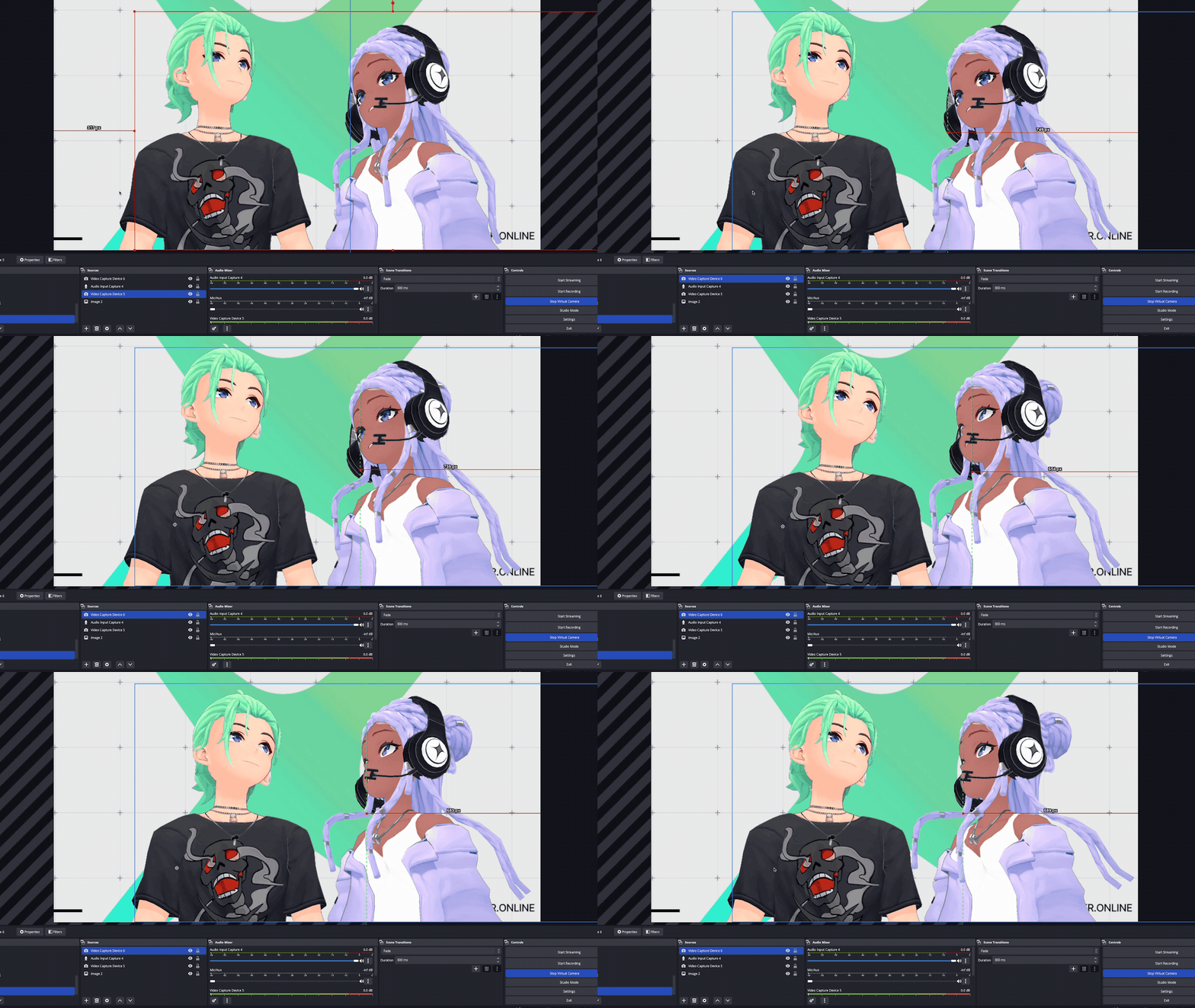
- Once you’ve done all the above steps, your partner VTuber’s avatar should show up on the OBS stream on top of the gameplay footage and you have successfully set up a collab stream!
Feedback
Thank you so much for reading!
See you in the Hyperverse! ✨
Additional Guides
You can easily configure Hyper to work with any third party streaming software like OBS or Streamlabs. To learn more, check out our guides:
- All about Hyper Online
- Import VRMs and use a custom character
- Setting up Collab Streams
- Use Hyper with Discord Webhooks
- Mirror your VTuber from iPhone to your PC
- Livestreaming with avatars using OBS
- VRM Optimization Guide
- Vtubing with Hyper's OBS plugin