Welcome to Hyper! We're an avatar social network that makes it easy to become a Vtuber (Virtual YouTuber). Hyper is a powerful VTubing app that lets you post for your followers, livestream to your audience, and record footage for TikTok or YouTube. You can also stream directly to Twitch, YouTube, Twitter, and more.

Use Hyper Online Vtuber App to Stream on PC
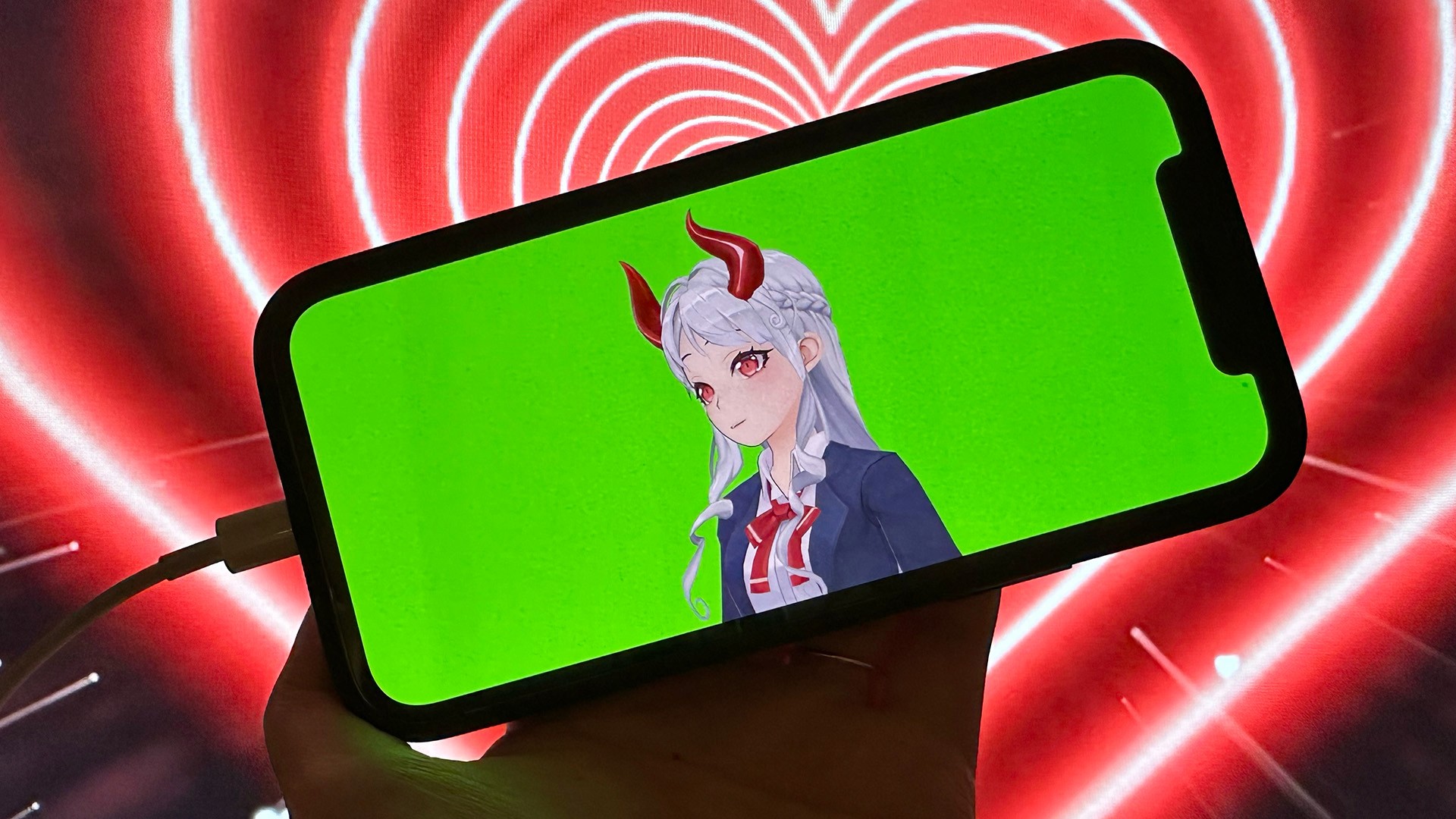
If you want to use Hyper to stream gameplay footage or use your avatar for Discord calls using OBS, this guide will teach you to achieve this and much more by configuring Hyper with OBS wirelessly. In this guide we will be using AirServer. Airserver allows for a 30-day free trial without watermark. We have our own solution, coming soon.
Note: Hyper now has an officially supported VTuber OBS plugin for Windows. Learn more:
AirServer Configuration
In this guide we will be using AirServer, a screen mirroring tool for Windows. We recommend using AirServer because it allows for a 30-day free trial without a watermark. We also have our own solution coming soon, so stay tuned for more updates on our Discord!
Download AirServer Mirroring Program
A screen recording showing the process of finding the download button for AirServer on a browser for mirroring from iPhone to PC
To download and install AirServer to your PC:
- Download AirServer by scrolling down and clicking Get it from Microsoft.
- A Microsoft application will pop up and prompt you to download it.
Upon download completion, this key verification window will pop up. You may choose to purchase an activation key or click the Continue Trial button for a 30-day free trial.
iPhone Configuration
Next, we have to configure screen sharing on iPhone so that it can detect the mirroring network created by AirServer on your Windows device. If AirServer is correctly installed, iPhone will detect the mirroring network of your Windows device automatically:
- Swipe down on your iPhone to view your main widgets.
- Locate the Screen Mirroring widget. It looks like 2 overlapping rectangles.
- You will be able to locate the available mirroring network. Click on the network. This network name should match the network on your AirServer program.
- At this point, your iPhone screen should be projected onto your Windows monitor.
Hyper OBS Mode
Hyper designed a mode specially for VTubers that want to use the app with OBS or other streaming software. This mode enables VTubers to hide all of our user interface and add a chroma key (green or blue screen) for a custom background in order to livestream their avatar on external video-sharing apps using their computer. Setting up your stream on OBS mode can be done in just 4 simple steps:
- Open Hyper Online and select your avatar, either from the custom app-creation tool, the sample avatar files on our VRMs tab, or by uploading your own VRM file through this super our quick and easy guide, How to Import VRM files on Hyper. Choose an avatar that is distinct and flashy to stand out from the crowd!
- Select OBS from the stream creation options at the bottom of your in-app navigation bar and this will take you to a staging area in the OBS mode where you can play around with your stream setup.
- Next, click on Setup OBS which lets you select your Studio Orientation and optionally add a Chroma Key by toggling the background to green or blue depending on your character.
- Tap Start OBS Mode to finish.
Pro tip: Set your iPhone’s orientation to horizontal mode if you want a higher resolution. Use two fingers to pinch to resize your character and rotate it to fit the orientation.
OBS Configuration
Add Your iPhone as a Window Capture Source
- Click the + in the Sources panel to add a new source.
- A window should pop up, click Window Capture.
- Make sure Create new is selected, and rename it to whatever you like.
- Select your [AirServer.exe] as the Window Capture you want to add.
You should see a preview. If your computer can handle it, crank the resolution up to the highest to make sure your resolution looks good. We recommend selecting 1920 x 1080 for optimal resolution.
- Click OK — it should add the Window Capture as a source and get added to the scene. You may need to resize the source afterwards to fit the canvas.
Select your [AirServer.exe] as the Window Capture you want to add.
- You should see a preview. If your computer can handle it, crank the resolution up to the highest to make sure your resolution looks good. We recommend selecting 1920 x 1080 for optimal resolution.
Filtering out Green Screen
If you've got a green screen or blue screen applied from Hyper’s OBS mode, you can remove it to get a transparent background. This will allow you to add a custom background for your Vtubing stream.
- Right click the Video Capture Source in the Sources panel.
- Click on the Filters option and then click the + icon under Effect Filters.
- Select Chroma Key from the list. This is the technical name for a green screen.
- Select the key color (typically blue or green) and configure the Similarity until it looks transparent.
- Click OK to save your selection.
Adding Images to the Stream
Most streaming software allow you to add many different visual components in your streaming frame. This enables you to set up a custom background for your avatar and even add GIFs or images to use as props in your stream. You can experiment and add as many varied visual elements as you want, but the simplest way to get started is by adding an image as a personalized background in your stream.
- Go back to the Sources panel on OBS and click on the + button to add an Image. Make sure Create new is selected.
- Select an image from your computer.
- Click OK. Your image should have been added to the scene. If it's covering your avatar, simply drag the image source below your Window Capture source to place it behind your avatar.
Configuring the Stream’s Resolution
If you chose one of the default resolutions, you'll probably have some black edges on the sides of your stream since iPhone's screen resolution doesn't match the standard video resolutions exactly. You can either:
- Change the resolution of the video input to match the default resolution (🙄); or
- Crop the black edges out of the frame — to do this, click the source in the preview and drag a resizing handle (the little square on the sides) while holding ⌥ (Option on a Mac) or Alt on Windows
From here you can resize both the background and your avatar's layer as necessary.
And now you can continue to add videos, websites, or whatever else you want from the Sources panel. Go wild!
It’s Really That Simple!
This is how you can use Hyper for iOS with OBS on your Windows PC without any physical equipment and set up streams for Discord, Twitch or YouTube right from Hyper.
We're currently working on adding support for Windows devices in our OBS mode to make this process easier. If you're interested in helping us build innovative tools to improve user experience on Hyper or have any ideas for features we should add or consider, please reach out to us at:
- feedback [at] hyper.online
Thanks for reading, and see you and your avatar in the Hyperverse! ✨
Additional Guides
You can easily configure Hyper to work with any third party streaming software like OBS or Streamlabs. To learn more, check out our guides:
- All about Hyper Online
- Import VRMs and use a custom character
- Setting up Collab Streams
- Use Hyper with Discord Webhooks
- Mirror your VTuber from iPhone to your PC
- Livestreaming with avatars using OBS
- VRM Optimization Guide
- Vtubing with Hyper's OBS plugin