How do I import custom props and backgrounds?
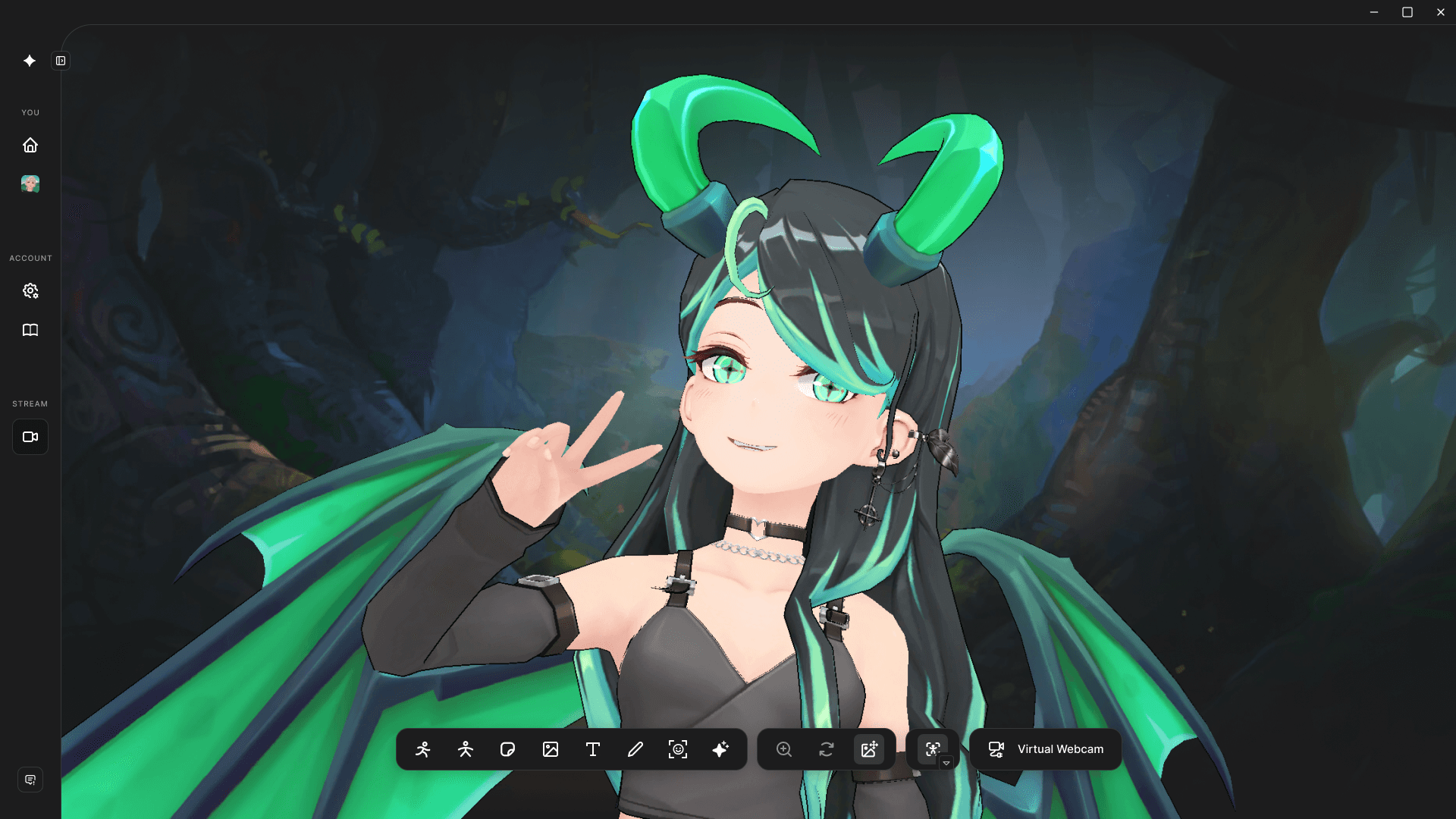
We don’t support uploading from Hyper Desktop yet. Please upload from web or mobile.
To upload background/props on Mobile:
- Backgrounds: Go to Avatar >> Backgrounds >> Imports >> Select Background
- Props: Go to Shoot >> Props >> Yours >> Camera Roll >> Select Prop
To upload backgrounds/props on Web:
- Go to https://hyper.online.
- Log into your account.
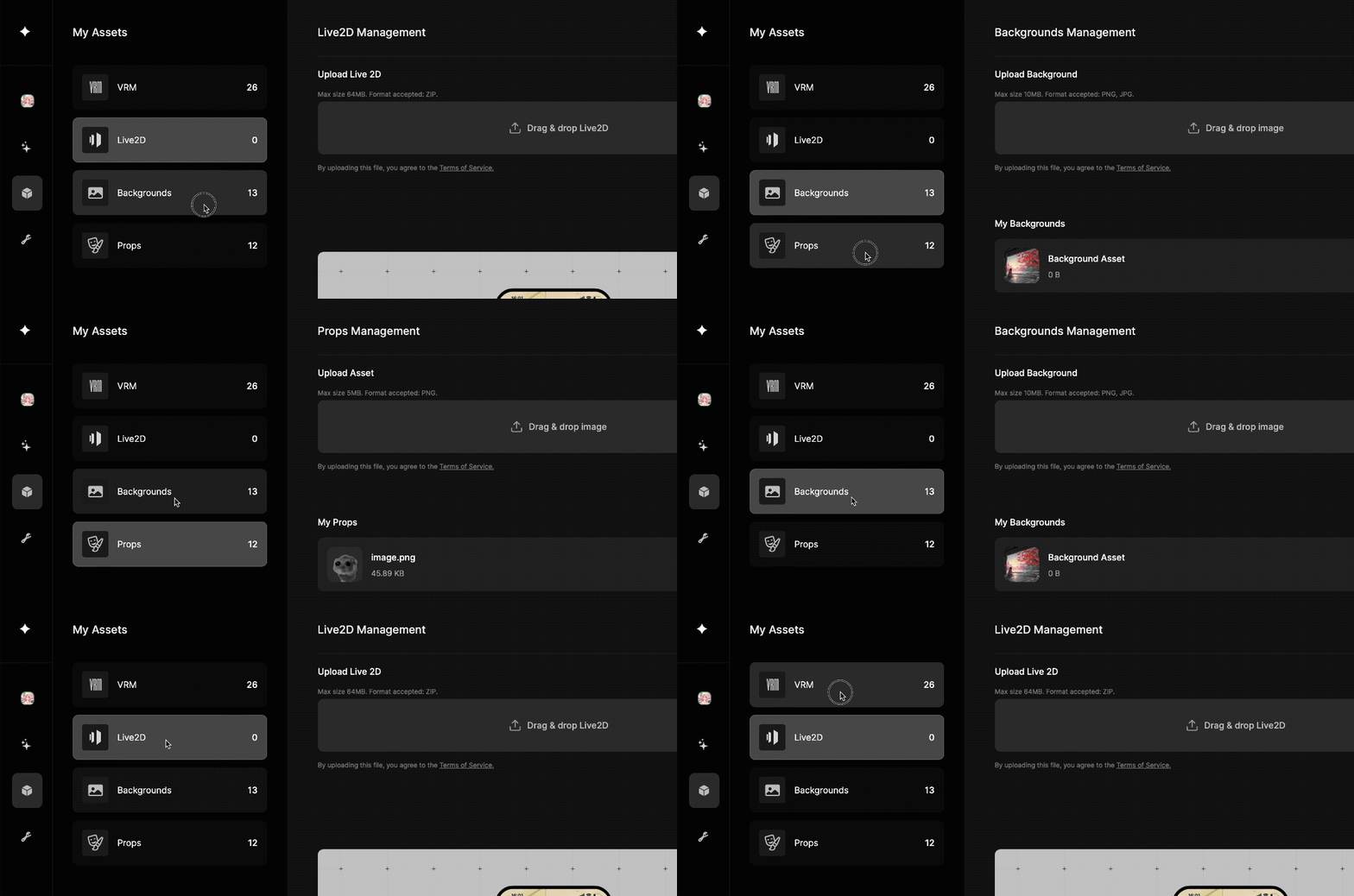
- Go to My Assets >> Backgrounds.
- Upload your background.
Why won't the virtual camera show up on Zoom / Discord / OBS / etc. ?
- Restart Hyper and/or the client application like Discord / Zoom.
- Start Hyper first before starting your other application.
- Enable Virtual Webcam on Hyper (ensure that it's "on")
- Make sure that your webcam is on and you are in a well lit environment.
- On OBS make sure there isn't multiple scenes using Hyper. Currently, Hyper should be a video input on one scene.

I'm on a Mac and Hyper still doesn't show up on OBS
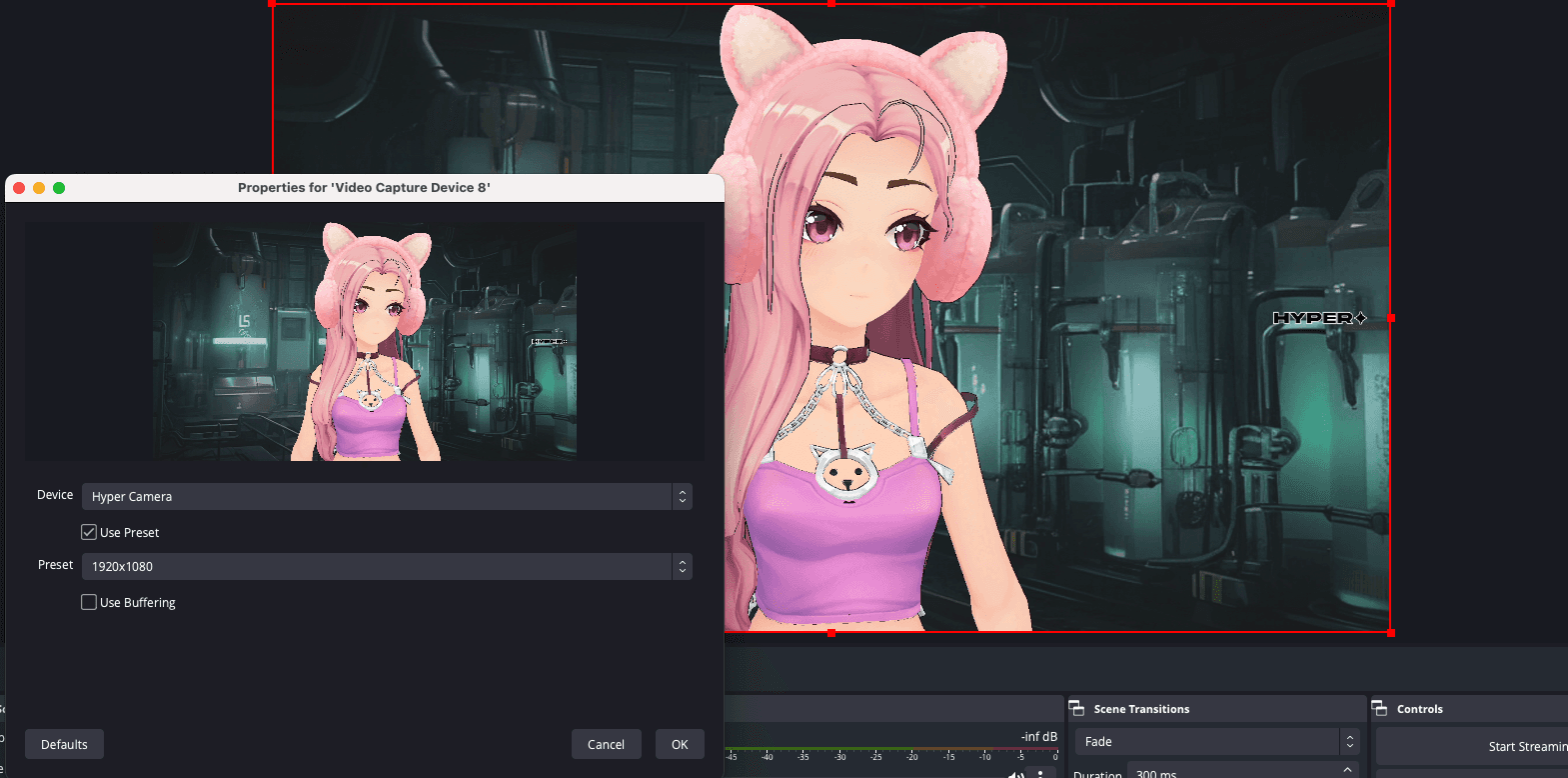
Try the steps above. If it's still not working, you may have to enable your permissions!
Navigate here on your Mac -
System Settings > Screen Time > Content and Privacy > App and Feature Restrictions
- Make sure that 'Allow Camera' is turned on.
- Then, restart your Mac.
- A pop up will appear asking for camera permissions. Check to make sure camera permissions is on.
Hyper Desktop is cut off!
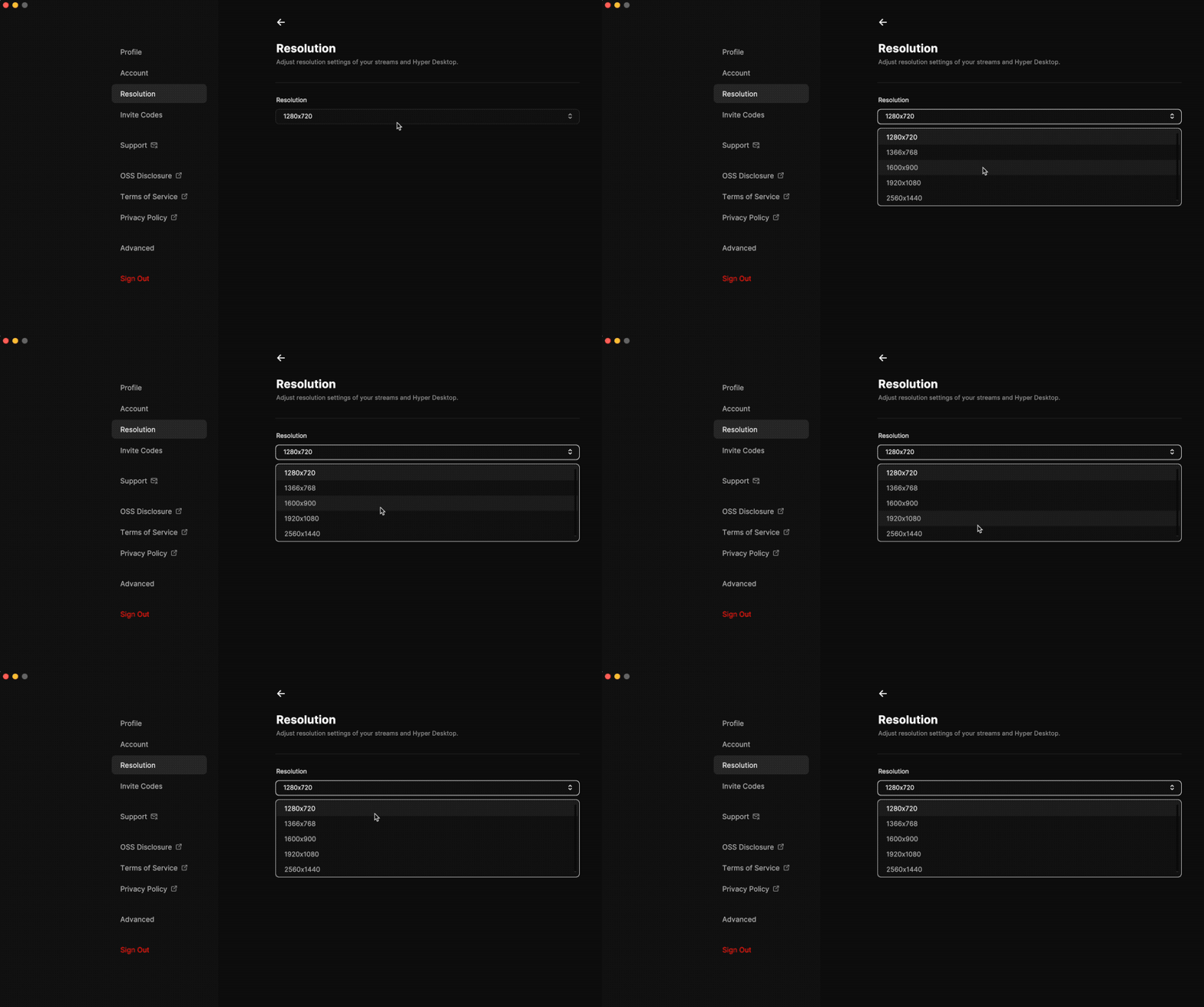
Set your resolution by going to Settings >> Resolution.
Why is my character not tracking my face?
- Did you allow Hyper to use your camera? Enable settings for Hyper.
On Mac: Go to Settings >> Privacy & Security >> Allow Hyper Desktop
- On PC: Need PC instructions here
- Is your webcam on? Is your laptop closed?
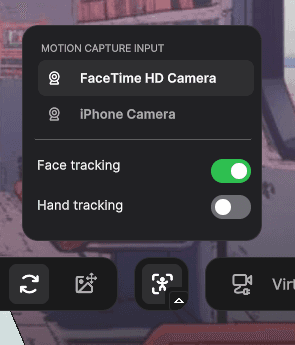
- If you are using your Mac device, make sure that Hyper Desktop is using the correct camera. Sometimes, it might automatically connect to your phone or other mobile device via continuity camera.
Select the correct camera here:
Did you allow Hyper to use your camera? Enable settings for Hyper.
- On Mac: Go to Settings >> Privacy & Security >> Allow Hyper Desktop
- On PC: Need PC instructions here
Is your webcam on? Is your laptop closed?
If you are using your Mac device, make sure that Hyper Desktop is using the correct camera. Sometimes, it might automatically connect to your phone or other mobile device via continuity camera.
Select the correct camera here:
- Select the correct camera here:
- To upload on Mobile:
Go to Avatar >> Change >> Imports and upload your file. You can send your file to your mobile device via Airdrop, Dropbox, Wetransfer, etc.
- To upload on Web:
Go to https://hyper.online
- Log into your account.
- Go to My Assets >> VRM. Drag and drop your VRM in.
- Return back to Hyper Desktop.
You may need to restart your application for the changes to fully update.
To upload on Mobile:
- Go to Avatar >> Change >> Imports and upload your file. You can send your file to your mobile device via Airdrop, Dropbox, Wetransfer, etc.
To upload on Web:
- Go to https://hyper.online
- Log into your account.
- Go to My Assets >> VRM. Drag and drop your VRM in.
Return back to Hyper Desktop.
- You may need to restart your application for the changes to fully update.
Why isn't hand tracking enabled for VRMs / custom avatars?
We are working on re-enabling this feature.Why is my Hyper Character pixelated on OBS?
You might need to restart OBS and check your video import features. Make sure that your Hyper resolution and the OBS import resolution is the same. We recommend 1920 x 1080 for both.
Why is hand tracking getting turned off automatically?
Currently Hyper desktop requires you to enable hand tracking manually each time you navigate to our “Stream” tab from the motion capture input menu shown above.Why is nothing happening when I try to buy gems on Steam?
The most likely cause of this is “In Game” Steam overlay not being enabled. Enable this from the "General" table of your game settings inside Steam.If the above option is grayed out, head to “In game” tab of your Steam’s global settings and enable the “Steam overlay” here instead!
Now you should be able to buy gems using Steam on your Hyper app!
How to setup iPhone as a webcam on Hyper Desktop?
- Here is a quick article on setting up iPhone as a webcam on Macs. https://support.apple.com/en-in/guide/mac-help/mchl77879b8a/mac
- Once its setup, head to Stream tab on Hyper Desktop app, and select your input source as your iPhone camera
- After selecting your iPhone camera, you might want to turn off/on face tracking manually due to a known issue inside the app
How can I improve mouth tracking?
Our team is aware of issues around mouth tracking and is actively working on improving this.How can I improve eye tracking?
Our team is aware of issues around eye tracking and is actively working on improving this.I’m a reporter and want to write something.
Please reach out to press@hyper.online.I have additional questions.
Have any questions or requests? Please join in our Discord and post your question in the help forum.Additional Guides
To learn more, check out our other guides:
If you are using your Mac device, make sure that Hyper Desktop is using the correct camera. Sometimes, it might automatically connect to your phone or other mobile device via continuity camera.
My character won’t stop spinning!
Hyper Desktop uses mouse gestures to control the orientation of your character.
Scroll to zoom in. Left click + Drag to rotate. Right click + drag to pan.
Click this button to lock your character in place.
How do I use my custom VTuber character / VROID avatar?
Currently, we only support uploading avatars on Mobile or on our website. Please upload from mobile / web and proceed to the Hyper Desktop application.